Why Does Smartwatch Stop Charging at 80 Percent and How to Fix It?
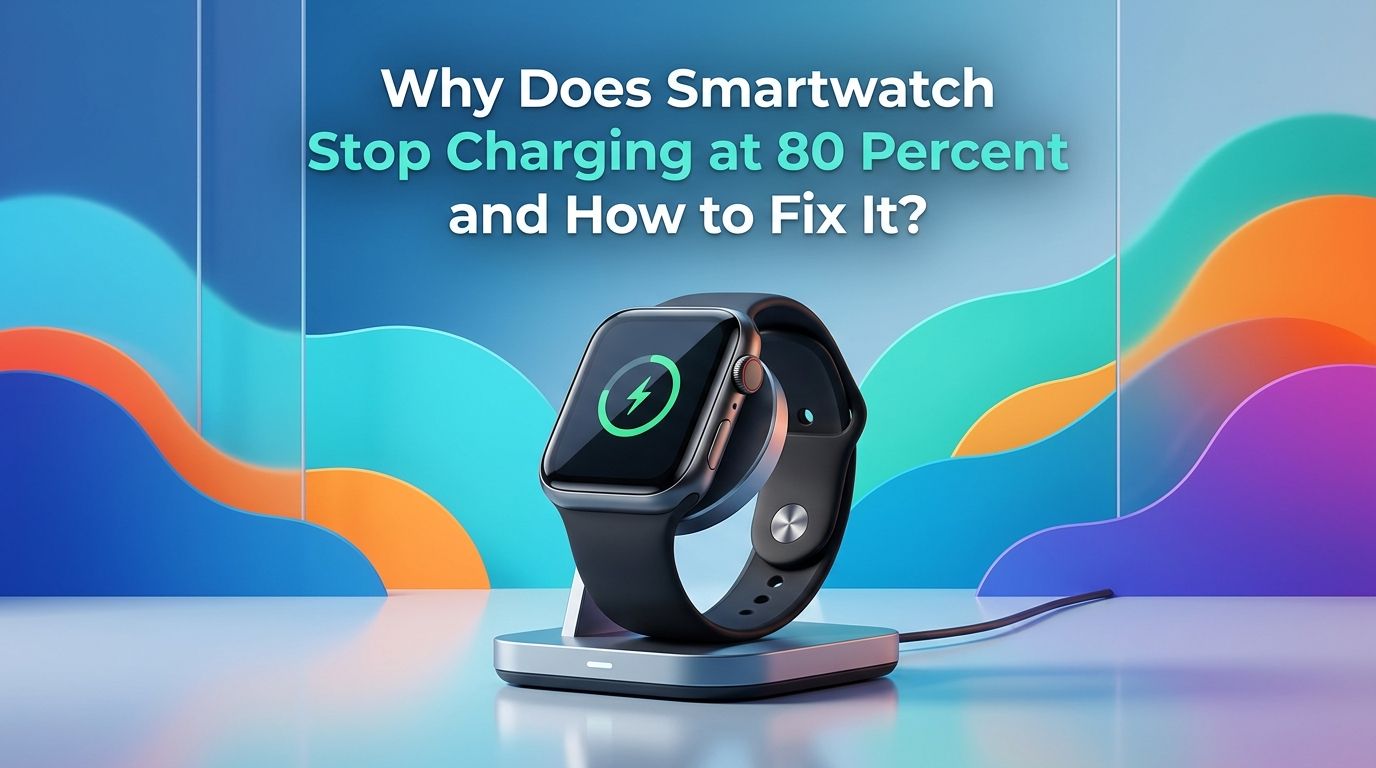
You place your smartwatch on its charger before bed. You expect a full 100% charge by morning. But you wake up and see the battery stuck at 80%. Sound familiar? This is one of the most common frustrations smartwatch owners face today.
The good news is that this problem usually has a clear explanation. In most cases, your smartwatch is doing exactly what it was programmed to do.
Modern smartwatches from Apple, Samsung, Google, and Garmin include battery optimization features that intentionally pause charging at 80%. The purpose is to protect the lithium ion battery inside your watch and extend its overall lifespan.
Key Takeaways
- Most smartwatches stop at 80% because of a built in battery optimization feature. Apple calls it Optimized Battery Charging and Optimized Charge Limit. Samsung uses Battery Protection.
- Dirty or corroded charging contacts are a common hardware cause. Sweat, dust, and grime build up on the charging pins over time. This can prevent a proper connection and stop the charge before it reaches 100%. A quick clean with a soft toothbrush and rubbing alcohol often solves this.
- Overheating will pause charging automatically. Smartwatches have built in thermal protection. If the device gets too warm during charging, it will stop to prevent damage. Charging in a cool, well ventilated area fixes this.
- Software bugs can cause unexpected charging behavior. A recent watchOS or Wear OS update may introduce a glitch that affects charging. Restarting your watch or updating to the latest firmware can resolve the issue.
- A degraded battery may struggle to hold a full charge. If your smartwatch is more than two or three years old, the battery may have lost enough capacity that it cannot reliably charge to 100%. You may need a battery replacement.
- Using a non original charger can cause problems. Third party chargers sometimes lack proper voltage or alignment, which leads to incomplete charging. Always use the charger that came with your watch or a certified replacement.
What Is Optimized Battery Charging on Smartwatches
Optimized Battery Charging is a software feature found in most modern smartwatches. Apple Watch, Samsung Galaxy Watch, and Google Pixel Watch all include some version of this feature. Its job is simple: stop charging at 80% to protect the lithium ion battery from unnecessary wear.
Lithium ion batteries degrade faster when they spend long periods at a full 100% charge. Research from Battery University confirms that keeping a battery between 20% and 80% reduces chemical stress and extends its usable lifespan. Smartwatch manufacturers use this science to build features that intentionally limit charging.
On Apple Watch, the feature is called Optimized Battery Charging and Optimized Charge Limit. The watch uses on device machine learning to study your daily routine. It learns when you usually take the watch off the charger and delays charging past 80% until just before that time. This means your watch spends less time sitting at 100%.
Samsung Galaxy Watch uses a similar feature called Battery Protection. On newer Galaxy Watch models, this setting can cap charging at 80% or 90%. Google Pixel Watch also has adaptive charging that manages the charging speed and limit based on your habits.
Pros: This feature genuinely extends battery lifespan over months and years. It requires no effort from you once enabled. It works silently in the background.
Cons: It can be confusing if you do not know it exists. It may leave you with less battery than you need for a long day. Disabling it may reduce long term battery health.
How to Turn Off Optimized Battery Charging on Apple Watch
If you need a full charge and your Apple Watch keeps stopping at 80%, you can override or disable the feature. There are two methods. The first is a one time override, and the second is a permanent change.
For a one time full charge, keep your Apple Watch connected to the charger. Tap the watch screen to show the charging display. Tap the circle with the green charging icon. Then tap “Charge to Full Now.” This tells your watch to ignore the 80% limit just this once and charge to 100%.
To disable Optimized Battery Charging entirely, open the Settings app on your Apple Watch. Scroll down and tap Battery. Tap Battery Health. Toggle off Optimized Battery Charging. You will see two options: “Turn Off Until Tomorrow” or “Turn Off.” Choose the option that fits your needs.
On Apple Watch Series 9 and later, and all Apple Watch Ultra models, Optimized Battery Charging is always active. You cannot fully disable it. However, you can still use the “Charge to Full Now” option at any time.
Apple also offers Optimized Charge Limit, available on watchOS 10 and later. This feature works alongside Optimized Battery Charging and may set a dynamic charge limit based on your usage patterns. You can turn it off in the same Battery Health menu.
Pros: Easy to override for a single charge session. Full control on older models. Protects battery when left enabled.
Cons: Cannot be fully disabled on newer Apple Watch models. Turning it off permanently increases battery wear over time.
How to Disable Battery Protection on Samsung Galaxy Watch
Samsung Galaxy Watch models include a Battery Protection feature that can limit charging to 80% or 90%. This feature is available on Galaxy Watch 4, Watch 5, Watch 6, Watch 7, and Watch Ultra models. It works by stopping the charge at your chosen limit to reduce battery degradation.
To disable it, open the Settings app on your Galaxy Watch. Tap Battery and Device Care or simply Battery. Look for the Battery Protection toggle. Tap it to turn it off. Once disabled, your watch will charge to 100% every time you place it on the charger.
Some Samsung Galaxy Watch models give you the option to choose between an 80% limit and a 90% limit. If you want more battery for a long day but still want some protection, the 90% limit is a good middle ground.
After disabling Battery Protection, place your watch on the charger and confirm it charges past 80%. If it still stops, the issue may be a different cause like a dirty charger, overheating, or a software bug.
Pros: Simple toggle in settings. Multiple limit options on newer models. Easy to re enable at any time.
Cons: Disabling it exposes the battery to more wear. Samsung does not offer a one time override like Apple does. You must remember to re enable it manually.
Why the 80/20 Battery Rule Matters for Smartwatches
The 80/20 rule is a well known guideline for lithium ion battery care. It says you should keep your battery charge between 20% and 80% for the best long term health. This is not a marketing trick. It is based on how lithium ion chemistry works.
When a lithium ion battery charges above 80%, the voltage increases significantly. This higher voltage creates more heat and chemical stress inside the battery cells. Over hundreds of charge cycles, this stress causes the battery to lose capacity faster. A battery that is regularly charged to 100% will degrade faster than one kept below 80%.
Studies show that a lithium ion battery charged only to 80% can last up to four times as many charge cycles compared to one charged to 100% every time. This is why Apple, Samsung, Google, and other manufacturers build software limits into their devices.
For smartwatches, this rule is especially important. Smartwatch batteries are small, typically between 250mAh and 600mAh. A small battery has less room for error. Even a small amount of degradation is noticeable because it directly reduces the hours of use you get each day.
Pros: Following the 80/20 rule can double or triple your battery’s useful life. It is free and requires no special tools. Most smartwatches automate it for you.
Cons: You get less usable charge per session. It can be inconvenient on days when you need maximum battery life. Some users find it frustrating to see 80% instead of 100%.
Dirty Charging Contacts Can Stop Your Watch From Charging Fully
One of the most overlooked causes of incomplete charging is dirty or corroded charging contacts. Smartwatches sit on your wrist all day. They collect sweat, dead skin cells, dust, sunscreen residue, and other debris. This grime builds up on the charging pins on the back of the watch and on the charger itself.
When the contacts are dirty, the electrical connection between the charger and the watch is weak. The watch may start charging but fail to maintain a stable connection. This can cause the charge to stall at any percentage, including 80%. In some cases, the watch may stop and restart charging repeatedly.
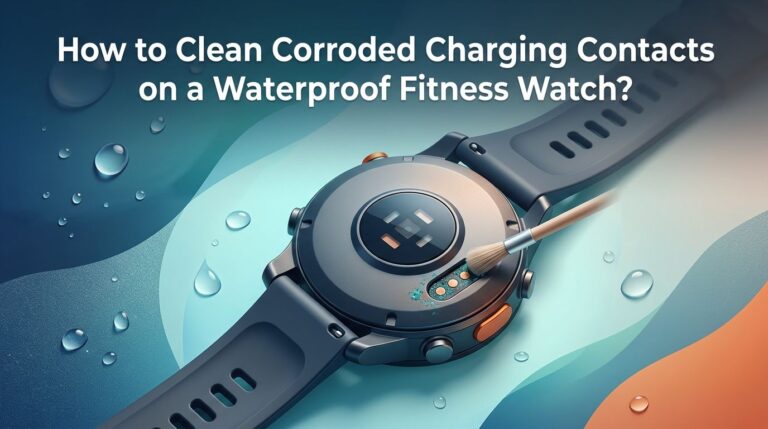
To clean the contacts on your smartwatch, use a soft bristled toothbrush and a small amount of rubbing alcohol (isopropyl alcohol, 70% or higher). Gently brush the charging pins on the back of the watch. Do the same for the charging puck or cable. Let everything dry completely before charging again.
For stubborn buildup, you can use a dry cotton swab or a pencil eraser to gently rub the metal contacts. Do not use sharp metal objects as they can scratch or damage the pins. Also avoid using excessive water near any openings like speaker grilles or microphone holes.
Pros: This fix is free and takes less than two minutes. It solves a surprisingly large number of charging issues. It requires no technical skill.
Cons: You need to do it regularly, especially if you exercise with your watch. Very heavy corrosion may not come off with simple cleaning. Damaged pins may need professional repair.
Overheating Can Pause Smartwatch Charging Automatically
All smartwatches have built in thermal protection. If the internal temperature of the watch rises above a safe threshold during charging, the watch will pause or stop charging entirely. This is a safety measure to prevent battery damage, swelling, or in extreme cases, fire.
Several things can cause a smartwatch to overheat while charging. Placing the watch on a charger in direct sunlight is a common one. Charging the watch on a soft surface like a pillow or blanket traps heat around the device. Running resource heavy apps or watch faces during charging also generates extra heat.
If your smartwatch displays a temperature warning or stops charging unexpectedly, move it to a cool, hard surface with good air circulation. Remove any case or cover from the watch. Let the watch cool down for 10 to 15 minutes before trying to charge again. Avoid charging the watch in temperatures above 35 degrees Celsius (95 degrees Fahrenheit).
Some users report that third party chargers generate more heat than official ones. This happens because non certified chargers may deliver slightly different voltage or current levels. Using the original charger that came with your watch is always the safest option.
Pros: Thermal protection prevents serious battery damage. The fix is simple: move to a cooler location. No repair needed.
Cons: You may not always have access to a cool environment. Frequent overheating could signal an internal hardware problem. Paused charging can leave you with a low battery at the wrong time.
Software Bugs and Firmware Glitches That Affect Charging
Sometimes your smartwatch stops at 80% because of a software bug. Firmware updates are released regularly for Apple Watch (watchOS), Samsung Galaxy Watch (Wear OS / One UI Watch), Google Pixel Watch (Wear OS), and Garmin watches. These updates sometimes introduce unexpected behavior, including charging issues.
After a major software update, some users have reported that their watches stopped charging past 80% even though no battery optimization setting was enabled. This usually happens because the update resets certain settings or introduces a new bug.
The first step is to restart your smartwatch. Press and hold the side button until the power menu appears. Select Restart or Power Off, wait 10 seconds, then turn the watch back on. This simple step clears temporary glitches and often fixes charging problems immediately.
If a restart does not work, check for a new software update. Manufacturers often release quick patches to fix bugs introduced by previous updates. On Apple Watch, go to Settings, then General, then Software Update. On Samsung Galaxy Watch, open the Galaxy Wearable app on your phone and check for updates.
As a last resort, you can factory reset your smartwatch. This erases all data and settings and returns the watch to its original state. Make sure you back up your data before doing this. A factory reset often resolves persistent software related charging issues.
Pros: Software fixes are free. Restarting takes seconds. Updates often resolve bugs quickly.
Cons: A factory reset erases your data. Some bugs persist until the manufacturer releases a patch. Troubleshooting software issues can take time.
Using a Non Original Charger Can Limit Charging
Not all chargers are created equal. Using a third party or non certified charger is a common reason smartwatches fail to charge past 80%. Cheap or poorly made chargers may not deliver the correct voltage, wattage, or magnetic alignment needed for a full charge.
Apple Watch uses a specific magnetic charging puck. If the magnets in a third party charger are weaker, the watch may not sit properly on the charger. A weak connection causes slow or incomplete charging. Samsung Galaxy Watch uses Qi based wireless charging, and some non certified Qi chargers lack the precise alignment needed.
Google Pixel Watch is even more specific. It requires its own proprietary magnetic charging cable. Using a generic wireless charger will not work at all. Garmin and Fitbit watches use unique pin based chargers, and substitutes often have slightly different pin spacing that causes a poor connection.
Always use the charger included with your smartwatch or purchase a replacement directly from the manufacturer. Check the voltage and amperage ratings to make sure they match your watch’s requirements. A standard 5V 1A USB wall adapter works for most smartwatches.
Pros: Switching to the original charger is an easy fix. It removes any doubt about charger compatibility. Certified chargers include proper safety features.
Cons: Original chargers can be more expensive. They may not always be available locally. You may need to order online and wait for delivery.
Battery Degradation and When to Replace Your Smartwatch Battery
If your smartwatch is two to three years old and consistently fails to charge past 80%, the battery itself may be the problem. Lithium ion batteries lose capacity over time. After about 500 full charge cycles, a typical smartwatch battery retains only 80% of its original capacity.
You can check your battery health on some smartwatch models. On Apple Watch, go to Settings, then Battery, then Battery Health. This screen shows you the maximum capacity of your battery as a percentage. If it is below 80%, your battery has significantly degraded.
Samsung Galaxy Watch does not offer a direct battery health percentage in settings. However, if your watch barely lasts half a day on a full charge or takes much longer to charge than it used to, those are strong signs of battery degradation.
Replacing a smartwatch battery is possible but varies by brand. Apple offers battery replacement through its support service and authorized repair providers. Samsung and Google also offer repair programs. For some watches, third party repair shops can replace the battery at a lower cost.
Pros: A new battery restores original performance. Battery replacement is cheaper than buying a new watch. Professional services offer warranty on the repair.
Cons: Not all smartwatches have user replaceable batteries. Repair costs vary and can be significant. Opening the watch may void the warranty if done incorrectly.
How to Fix Charging Issues on Garmin and Fitbit Watches
Garmin and Fitbit smartwatches use pin based charging systems instead of wireless charging. This means the charging contacts must make direct physical contact with the watch. Any misalignment, dirt, or damage can interrupt the charge.
For Garmin watches, disconnect the charging cable and reattach it firmly. Make sure the pins on the cable click into the contacts on the back of the watch. Use a soft bristled toothbrush with water to clean the charging port on the watch. Garmin recommends against using sharp objects or strong chemicals near the charging area.
If cleaning does not help, try a different USB port or wall adapter. Some USB ports on computers do not provide enough power to charge a watch reliably. A UL certified 5V 1A wall adapter is the safest option. You can also try leaving the watch on the charger for up to two hours, removing it, and then charging again for another two hours.
For Fitbit watches, similar steps apply. Clean the charging contacts on both the watch and the cable. Make sure the watch is dry before placing it on the charger. Fitbit devices can have trouble charging if moisture is present on the pins. A hard restart can also help. On most Fitbit models, press and hold the side button for 10 seconds to force a restart.
Pros: Pin based chargers are simple to clean and inspect. Replacement charging cables are affordable. Most issues resolve with basic troubleshooting.
Cons: Charging pins can wear down over time with repeated use. Fitbit’s proprietary cables can be hard to find for older models. A damaged charging port may require professional repair.
Step by Step Troubleshooting Checklist
If your smartwatch stops charging at 80% and you are not sure of the cause, follow this checklist in order. Start with the simplest fixes and work your way up to more involved solutions.
Step 1: Check if a battery optimization feature is enabled. Go to your watch’s battery settings and look for Optimized Battery Charging, Optimized Charge Limit, or Battery Protection. Disable it or use the one time override to charge to 100%.
Step 2: Clean the charging contacts. Use a soft toothbrush and rubbing alcohol on both the watch and the charger. Let them dry completely before reconnecting.
Step 3: Restart your smartwatch. A simple restart clears temporary software glitches that may affect charging.
Step 4: Try a different charger or power source. Switch to the original charger if you are using a third party one. Plug into a wall outlet instead of a computer USB port.
Step 5: Check for software updates. Install the latest firmware for your watch. Manufacturers often release bug fixes that address charging problems.
Step 6: Charge in a cool, well ventilated area. Remove any case or cover from the watch. Avoid direct sunlight and soft surfaces.
Step 7: Check your battery health. If your watch is older than two years and shows poor battery health, consider a battery replacement.
Step 8: Factory reset your watch as a last resort. Back up your data first. This removes all settings and apps and returns the watch to its factory state.
Pros: This checklist covers 95% of all smartwatch charging issues. Each step is simple and requires no special tools. It works for all major smartwatch brands.
Cons: The process can take time if the first few steps do not solve the problem. A factory reset erases your personal data. Battery replacement involves cost and effort.
Frequently Asked Questions
Is it bad to charge my smartwatch to 100% every day?
Charging to 100% daily is not dangerous, but it does increase battery wear over time. Lithium ion batteries experience more chemical stress at very high charge levels. If you want to maximize your battery’s lifespan, allow the optimization feature to manage charging. For occasional full charges before a long trip or busy day, charging to 100% is perfectly fine.
Why does my Apple Watch stop charging at 80% overnight?
This is caused by Optimized Battery Charging or Optimized Charge Limit. Your Apple Watch learns your morning routine and delays charging past 80% until shortly before you usually pick it up. This minimizes the time the battery spends at full charge. You can tap the charging screen and select “Charge to Full Now” if you need 100% right away.
Can a dirty charger stop my watch from reaching a full charge?
Yes. Dirty, corroded, or obstructed charging contacts can weaken the connection between your watch and the charger. This results in slow charging, intermittent charging, or the charge stopping before reaching 100%. Clean both the watch and the charger with a soft toothbrush and rubbing alcohol to fix this.
Should I turn off battery optimization on my smartwatch?
It depends on your priorities. If you need a full charge every day and battery longevity is less important to you, turning it off makes sense. If you want your battery to last as long as possible before needing a replacement, keep the feature enabled. Most users benefit from leaving it on and using the one time override when they need a full charge.
How do I know if my smartwatch battery needs to be replaced?
Signs of a degraded battery include the watch dying much faster than it used to, taking significantly longer to charge, or not charging past a certain percentage even with optimization disabled. On Apple Watch, check the Battery Health screen in Settings. If the maximum capacity is below 80%, a replacement is recommended. For other brands, a noticeable drop in daily battery life is the main indicator.
Does using a non original charger damage my smartwatch battery?
A non original charger will not always damage your battery, but it can cause problems. Chargers that deliver incorrect voltage or poor magnetic alignment can lead to incomplete charging, overheating, or slower charge speeds. For the safest and most reliable experience, always use the manufacturer’s original charger or a certified replacement.

Hi, I’m Lucy Jones, a dedicated watch enthusiast and reviewer. I spend my time hunting down, testing, and evaluating the most intriguing wristwatches on the market. My goal is to guide you through the overwhelming choices with honest, hands-on insights into every timepiece.