12 Easy Fixes for Apple Watch Walkie-Talkie App Not Working
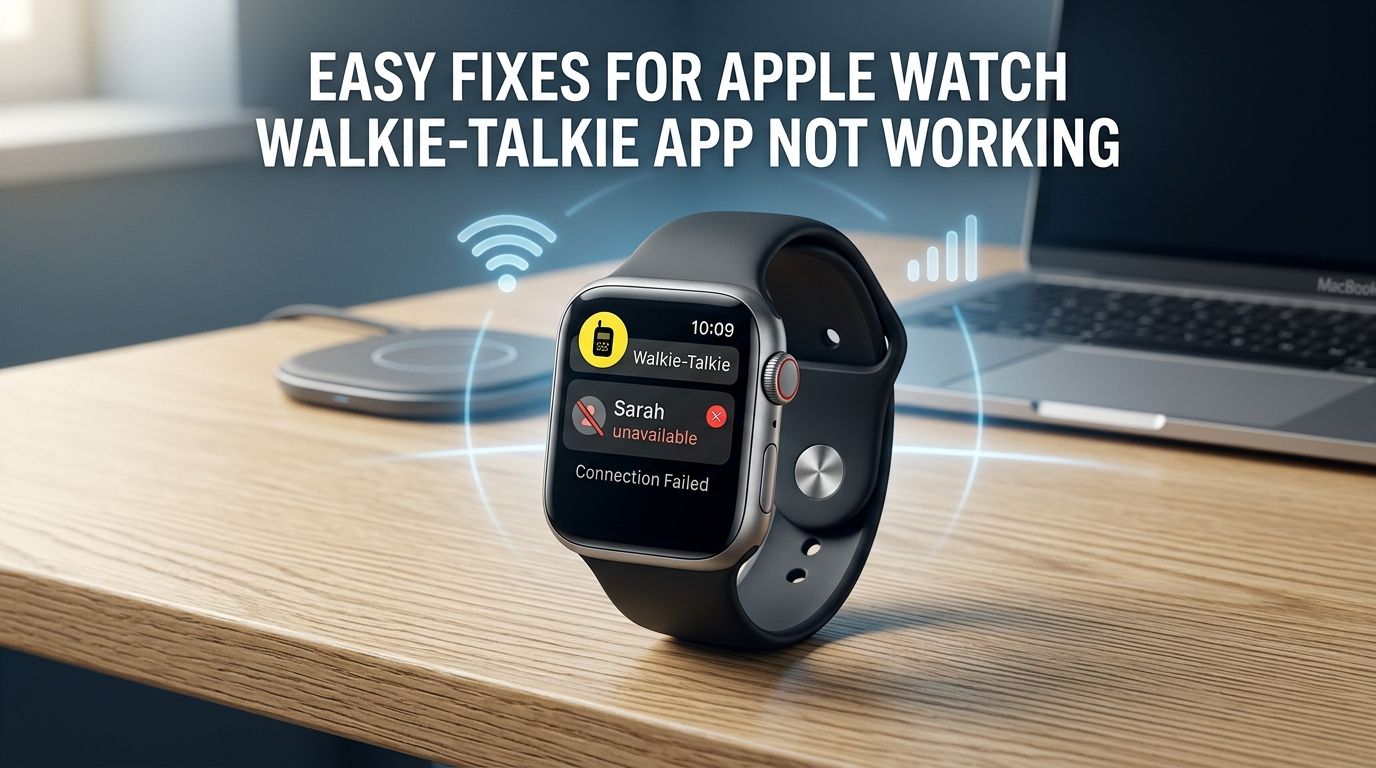
You grab your Apple Watch, open the Walkie Talkie app, and try to reach your friend. But nothing happens. Maybe you see “Checking Availability” forever. Maybe the invite never goes through. Or perhaps the app just refuses to connect. You are not alone.
The Walkie Talkie feature on Apple Watch is a fun and fast way to talk with friends and family. It works like a real walkie talkie. You press a button, speak, and your friend hears you instantly.
But this feature depends on several settings and connections working together. FaceTime, Wi-Fi, Bluetooth, watchOS version, and Apple Account settings all play a role.
Key Takeaways
- FaceTime is the backbone of Walkie Talkie. The feature runs on FaceTime Audio. If FaceTime is turned off, not signed in, or deleted from your iPhone, Walkie Talkie will not work. Always check FaceTime settings first.
- Both users must meet the requirements. You and your friend both need an Apple Watch Series 1 or later running watchOS 5.3 or newer. Both iPhones need iOS 12.4 or later with FaceTime active. If one side does not meet these requirements, the connection will fail.
- Restarting devices fixes most temporary glitches. A simple restart of your Apple Watch and iPhone clears out minor software bugs that block the Walkie Talkie connection. Try this before anything else.
- “Checking Availability” usually means a settings issue. This common error often points to a FaceTime sign in problem, a network issue, or a contact that needs to be removed and re-added.
- Network connection matters more than you think. Your Apple Watch needs a stable connection to your iPhone through Bluetooth, or access to Wi-Fi or cellular. Poor connectivity is a hidden cause of Walkie Talkie failures.
- Deleting and re-adding contacts often clears stuck invitations. If your invite is stuck or your friend appears unavailable, removing the contact from the Walkie Talkie app and sending a fresh invite can solve the problem quickly.
Understanding How Apple Watch Walkie Talkie Works
The Walkie Talkie app on Apple Watch uses FaceTime Audio to send and receive voice messages between two Apple Watch users. It is not a standalone radio feature. It needs an active internet connection and a working FaceTime setup on the paired iPhone.
Your Apple Watch connects to your iPhone through Bluetooth. If your iPhone is not nearby, the watch can use Wi-Fi or cellular data instead. The Walkie Talkie app sends your voice as a FaceTime Audio stream to the other person’s Apple Watch.
Both you and your friend must accept an invitation before you can talk. This invitation process also relies on FaceTime. So any problem with FaceTime, network access, or account settings on either side will stop the feature from working.
Check That FaceTime Is Set Up and Active
FaceTime is the single most important requirement for Walkie Talkie. Open the Settings app on your iPhone and tap FaceTime. Make sure the FaceTime toggle is turned on. Confirm that you are signed in with your Apple Account.
Under “You Can Be Reached By FaceTime At,” check that your email address or phone number is selected. If nothing is checked, Walkie Talkie cannot route audio to you.
Try making a quick FaceTime Audio call to someone. If the call works, FaceTime is set up correctly. If the call fails, fix your FaceTime setup first before troubleshooting Walkie Talkie.
Pros: This fix addresses the root cause of most Walkie Talkie failures. It takes less than a minute.
Cons: If FaceTime is restricted in your country or region, this fix will not help since the Walkie Talkie app is not available in those areas.
Restart Your Apple Watch and iPhone
A restart clears temporary software glitches that often block the Walkie Talkie connection. Press and hold the side button on your Apple Watch until the power slider appears. Drag the slider to turn it off. Then press and hold the side button again to turn it back on.
Do the same for your iPhone. Power it down completely, wait about 10 seconds, and turn it back on. After both devices restart, open the Walkie Talkie app and try again.
This fix sounds basic, but it works more often than you might expect. Many users on Apple Support Communities report that a simple restart resolved their “Connection Failed” or “Checking Availability” errors. Try this early in your troubleshooting process.
Pros: Quick, easy, and solves a wide range of temporary bugs.
Cons: The fix is temporary if the root cause is a deeper settings or software issue.
Make Sure Both Users Meet the Requirements
Walkie Talkie has specific hardware and software requirements. Both you and your friend need an Apple Watch Series 1 or later running watchOS 5.3 or later. Both paired iPhones need iOS 12.4 or later.
To check your watchOS version, open Settings on your Apple Watch and tap General, then About. To check your iPhone version, go to Settings, then General, then About.
If either person has an outdated watch or iPhone, the Walkie Talkie feature will fail silently. There may be no error message. The invite just never arrives or the app shows “unavailable” permanently. Ask your friend to verify their software version too.
Pros: Eliminates a common hidden cause of failure, especially for older devices.
Cons: Requires coordination with the other person. You cannot check their device settings yourself.
Update watchOS and iOS to the Latest Version
Apple regularly releases software updates that fix bugs in the Walkie Talkie app. Open the Watch app on your iPhone, go to General, then tap Software Update. Install any available update. Do the same on your iPhone under Settings, General, Software Update.
Outdated software is a frequent cause of connection failures. Some watchOS versions had known Walkie Talkie bugs that Apple fixed in later releases. Running the latest software gives you the best chance of a smooth experience.
Make sure your Apple Watch is on its charger and connected to Wi-Fi during the update. The update process can take 30 minutes or longer. After updating, restart both devices and test the Walkie Talkie app again.
Pros: Fixes known bugs and improves overall device stability.
Cons: Updates take time and require the watch to be on the charger. Older Apple Watch models may run slower after updates.
Remove and Re-Add Your Walkie Talkie Contact
Stuck invitations are a very common problem. Your friend’s name might stay gray in the app, or the status reads “Checking Availability” forever. The best fix is to delete the contact and start fresh.
Open the Walkie Talkie app on your Apple Watch. Swipe left on the contact’s name and tap the delete button. Then tap the plus button and select the same person again. This sends a brand new invitation.
Ask your friend to do the same thing on their end. They should delete your contact from their Walkie Talkie app, then wait for your new invite to arrive. This clears any corrupted invitation data and often fixes the problem immediately.
Pros: Directly fixes stuck invitations and availability errors. Very effective for “Checking Availability” issues.
Cons: Your friend must accept the new invitation. If they miss the notification, the connection will not complete.
Toggle FaceTime Off and Back On
Sometimes FaceTime needs a fresh start to fix connection issues with Walkie Talkie. Go to Settings on your iPhone and tap FaceTime. Turn the FaceTime toggle off. Wait at least 30 seconds. Then turn it back on.
After toggling FaceTime, sign back in with your Apple Account if needed. Check that your email address and phone number are still listed under “You Can Be Reached By FaceTime At.”
This simple toggle refreshes the FaceTime connection that Walkie Talkie depends on. Several users in Apple Support forums confirm this fixed their issue when nothing else worked. It is especially helpful if you see the error message “Check that FaceTime is signed in with your Apple Account.”
Pros: Addresses FaceTime authentication and connection errors directly.
Cons: You may need to re-enter your Apple Account credentials. Any active FaceTime calls will be interrupted.
Check Your Network Connection
Your Apple Watch needs a reliable connection to reach the internet. If your watch is connected to your iPhone through Bluetooth, make sure your iPhone has a stable Wi-Fi or cellular connection. A weak or unstable network can cause Walkie Talkie to fail silently.
If your iPhone is not nearby, your Apple Watch must connect to Wi-Fi directly or use its own cellular connection (if you have a cellular model). Check the Control Center on your watch to confirm your connection status.
Try switching between Wi-Fi networks or turning cellular on and off. Sometimes the network your device is on has firewall restrictions that block FaceTime traffic. Switching to a different network can solve the problem.
Pros: Fixes hidden connectivity issues that other troubleshooting steps miss.
Cons: You may not always have access to a different network. Cellular connections may have weaker signals in some areas.
Reset Network Settings on Your iPhone
If network issues persist, a network settings reset can help. Go to Settings on your iPhone, then General, then Transfer or Reset iPhone. Tap Reset and choose Reset Network Settings.
This will erase all saved Wi-Fi passwords, Bluetooth connections, and VPN settings. Your iPhone will restart automatically. After the restart, reconnect to your Wi-Fi network and let your Apple Watch re-establish its Bluetooth connection.
A network reset clears out corrupted network configurations that can block FaceTime Audio and Walkie Talkie. It is a more aggressive step, but it is very effective when standard fixes do not work.
Pros: Resolves deep network configuration problems that other fixes cannot touch.
Cons: You lose all saved Wi-Fi passwords and Bluetooth pairings. You must reconnect all your devices and networks manually.
Reinstall the Walkie Talkie App
Sometimes the Walkie Talkie app itself gets corrupted. You can delete it and reinstall it from the App Store on your Apple Watch. Press and hold the app icon on your watch’s home screen, tap the X to delete it, then confirm.
To reinstall, open the App Store on your Apple Watch, search for “Walkie Talkie,” and download it again. After installation, open the app and re-add your contacts by sending fresh invitations.
If you deleted FaceTime from your iPhone at some point, that can also cause the Walkie Talkie app to disappear from your watch. Reinstall FaceTime on your iPhone first, then check if the Walkie Talkie app reappears on your watch.
Pros: Fixes app corruption and data issues cleanly.
Cons: You lose your current Walkie Talkie contacts and must send new invitations to all of them.
Check Do Not Disturb and Theater Mode
Your Apple Watch has modes that can block Walkie Talkie alerts. Theater Mode automatically makes you unavailable for Walkie Talkie. If it is turned on, your friends will see you as unavailable and cannot reach you.
Do Not Disturb mirrors your iPhone settings and can also prevent Walkie Talkie notifications from reaching you. Open Control Center on your Apple Watch by swiping up from the watch face. Check if the theater mask icon or the crescent moon icon is active.
Turn off both modes and try Walkie Talkie again. Also check the Walkie Talkie toggle in Control Center. It has its own on/off switch shaped like a walkie talkie icon. If this is off, you will appear unavailable to all your contacts.
Pros: Instantly restores Walkie Talkie availability with a single tap.
Cons: You may want these modes active for other reasons. Turning them off means you will receive all notifications again.
Unpair and Re-Pair Your Apple Watch
If nothing else works, unpairing and re-pairing your Apple Watch is the most thorough fix available. Open the Watch app on your iPhone and tap All Watches. Tap the info button next to your watch and select Unpair Apple Watch.
Your iPhone will automatically create a backup of your watch data before unpairing. The watch will reset to factory settings. Then set it up again by bringing it near your iPhone and following the on-screen instructions.
This process clears all data and settings on your watch and gives it a completely fresh start. After re-pairing, set up FaceTime on your iPhone again, open the Walkie Talkie app, and send new invitations. This fix resolves persistent bugs that survive restarts and app reinstalls.
Pros: The most complete fix for stubborn Walkie Talkie issues. Resolves deep software corruption.
Cons: Takes significant time (30 to 60 minutes). You must restore your watch from backup and reconfigure your settings. Some apps may need to be set up again.
Contact Apple Support If the Problem Continues
If you have tried every fix in this guide and the Walkie Talkie app still does not work, the issue may require help from Apple. The problem could be a hardware defect with your watch’s microphone, speaker, or Bluetooth chip. It could also be an account level issue with your Apple Account or FaceTime setup.
Visit Apple Support online or book an appointment at your nearest Apple Store or Authorized Service Provider. You can also call Apple Support or start a chat session on their website. Have your Apple Watch model, serial number, and watchOS version ready.
Apple Support can run remote diagnostics on your watch and check your account for any flags or restrictions. If there is a hardware problem, they can offer a repair or replacement. Do not wait too long if you suspect a hardware issue, especially if your watch is still under warranty or covered by AppleCare.
Frequently Asked Questions
Why does my Apple Watch Walkie Talkie say “Checking Availability” all the time?
This usually means there is a problem with FaceTime settings on your iPhone or your friend’s iPhone. Open Settings, tap FaceTime, and make sure it is turned on and signed in. Then delete the contact from the Walkie Talkie app and send a new invitation. A restart of both your watch and iPhone also helps clear this error.
Can I use Walkie Talkie without my iPhone nearby?
Yes, but your Apple Watch needs an alternative internet connection. If you have an Apple Watch with cellular, it can connect on its own. A Wi-Fi connection also works. Without any internet access, the Walkie Talkie app cannot send or receive voice messages.
Does Walkie Talkie work with any Apple Watch model?
Walkie Talkie works on Apple Watch Series 1 and later running watchOS 5.3 or newer. The original Apple Watch (Series 0) does not support this feature. Both you and your friend must meet this requirement for the feature to function.
Why did my friend’s Walkie Talkie invitation never arrive?
Invitations rely on FaceTime and push notifications. Make sure your friend has FaceTime turned on and that their Apple Watch allows notifications from the Walkie Talkie app. The invitation might also be sitting in their Notification Center. Ask them to check by swiping down from the top of their watch face.
Is the Walkie Talkie app available in every country?
No. The Walkie Talkie app is not available in all countries and regions because it depends on FaceTime. In countries where FaceTime is restricted or unavailable, the Walkie Talkie app will not appear on your Apple Watch. Check Apple’s official feature availability page for your region.
How far apart can two Apple Watch users be to use Walkie Talkie?
There is no distance limit for the Walkie Talkie feature. It works over the internet, not radio waves. As long as both watches have an active internet connection through a paired iPhone, Wi-Fi, or cellular data, you can use Walkie Talkie from anywhere in the world.

Hi, I’m Lucy Jones, a dedicated watch enthusiast and reviewer. I spend my time hunting down, testing, and evaluating the most intriguing wristwatches on the market. My goal is to guide you through the overwhelming choices with honest, hands-on insights into every timepiece.