How to Pair Apple Watch With iPhone? Set Up Your Watch
Getting a new Apple Watch is exciting, but the first step can trip you up. Pairing your Apple Watch with your iPhone should take only a few minutes. Yet thousands of users get stuck on spinning screens, failed connections, and confusing error messages every single day.
Whether you just unboxed a brand new Apple Watch or you switched to a new iPhone and need to reconnect your existing watch, this guide walks you through every scenario.
You will learn the exact steps to pair your Apple Watch, fix common problems, and get your watch running without stress. Keep reading because we cover automatic pairing, manual pairing, switching to a new iPhone, and troubleshooting tips that actually work.
Key Takeaways
- Your iPhone must meet minimum requirements. The newest Apple Watch models (Series 11, Ultra 3, SE 3) require an iPhone 11 or later running iOS 26. Older Apple Watch models work with earlier iPhones and iOS versions. Always check compatibility before you begin.
- Bluetooth and Wi-Fi must be turned on. Your iPhone needs an active Bluetooth connection and a Wi-Fi or cellular network connection. Without these, the pairing process will not start or will fail midway through.
- You can pair automatically or manually. The automatic method uses your iPhone camera to scan an animation on the watch screen. The manual method lets you enter a six digit code instead. Both methods achieve the same result.
- Switching to a new iPhone requires unpairing first. If your Apple Watch was connected to an old iPhone, you must unpair it from that device before connecting it to a new one. Unpairing creates a backup that you can restore on the new phone.
- Most pairing failures have simple fixes. Restarting both devices, updating software, and resetting network settings solve the majority of pairing problems. You rarely need to visit an Apple Store for this issue.
- Keep both devices close together during setup. The entire pairing and syncing process requires your Apple Watch and iPhone to stay within close range. Moving them apart can interrupt the connection and cause errors.
How to Check if Your iPhone Is Compatible With Your Apple Watch
Not every iPhone works with every Apple Watch. Apple sets specific compatibility requirements for each watchOS version. The latest Apple Watch models, including the Series 11, Ultra 3, and SE 3, need an iPhone 11 or later with iOS 26 or later installed.
Older Apple Watch models have different requirements. For example, watchOS 11 requires an iPhone XS or later with iOS 18. If you own an Apple Watch Series 6, 7, 8, or 9, check the Apple Watch compatibility page on Apple’s website to confirm your iPhone works.
You can identify your iPhone model by going to Settings > General > About on your iPhone. Compare this with Apple’s official compatibility list. If your iPhone is too old, you will need to upgrade your phone before you can pair a newer Apple Watch.
How to Prepare Your iPhone and Apple Watch Before Pairing
A little preparation saves you from headaches during setup. Start by updating your iPhone to the latest iOS version. Go to Settings > General > Software Update and install any available updates. Outdated software is one of the top reasons pairing fails.
Next, make sure Bluetooth is turned on. Open Settings > Bluetooth and toggle it on. Also confirm your iPhone is connected to Wi-Fi or a cellular network. The pairing process downloads data and verifies your Apple Account, so an internet connection is required.
Charge your Apple Watch to at least 50% before you begin. A low battery can interrupt the setup process and force you to start over. Place the watch on its charger while you prepare your iPhone if needed.
How to Pair Your Apple Watch Using the Automatic Method
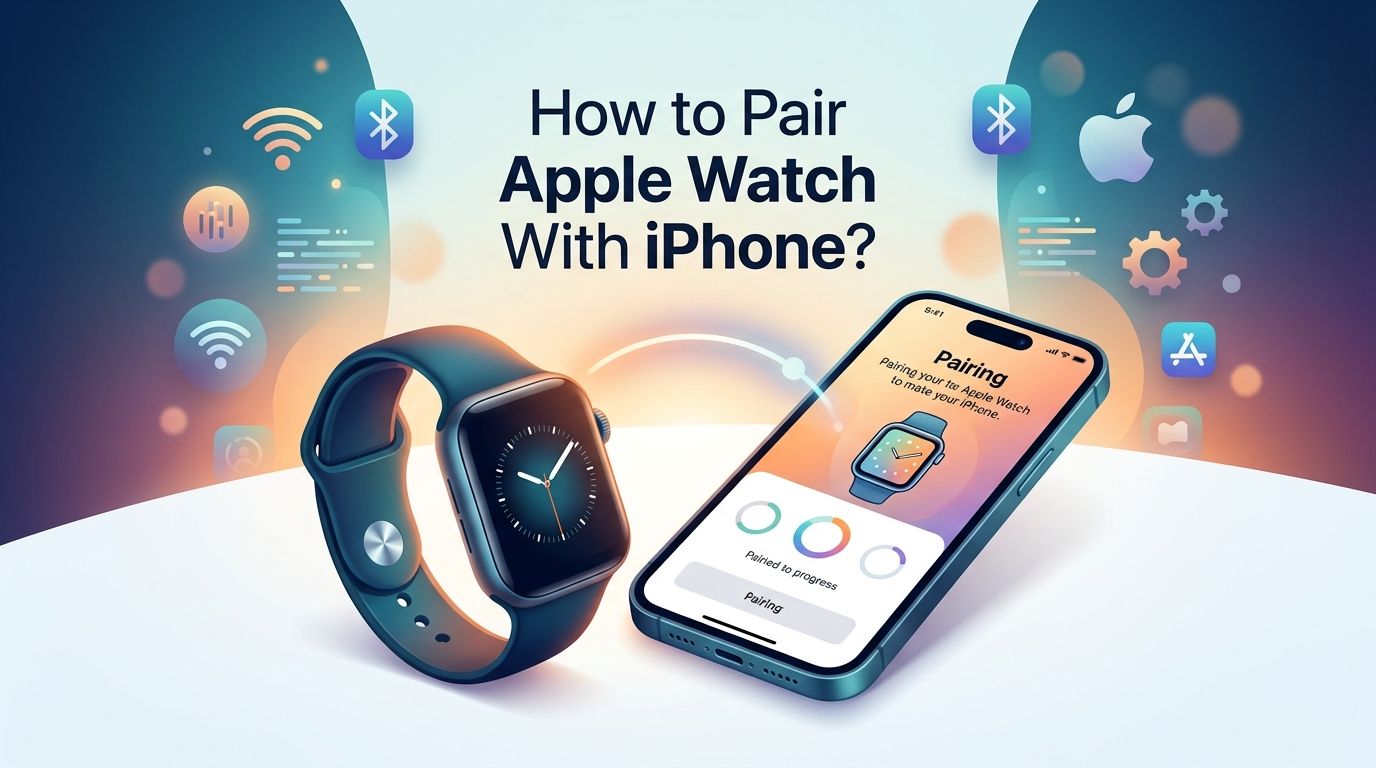
The automatic method is the fastest way to connect your Apple Watch. Turn on your Apple Watch by pressing and holding the side button until the Apple logo appears. Put the watch on your wrist and bring it close to your unlocked iPhone.
A message saying “Use your iPhone to set up this Apple Watch” will appear on your iPhone screen. Tap Continue. Your iPhone camera will activate. Hold your iPhone over the swirling animation displayed on your Apple Watch face. Center the animation in the viewfinder.
Once your iPhone reads the pattern, it will confirm that pairing is complete. This whole scanning step takes about 10 seconds. You will then move on to the setup screens where you choose settings, create a passcode, and configure features like Apple Pay.
Pros: Very fast, requires minimal effort, works reliably in most cases.
Cons: Requires a working iPhone camera, may not work in very dark or very bright lighting conditions.
How to Pair Your Apple Watch Manually Without Using the Camera
Sometimes the camera method does not work. Your iPhone camera might have damage, or the swirling animation might not scan properly. In these situations, you can pair manually instead.
Start the pairing process as normal. When the camera viewfinder appears on your iPhone, tap “Pair Apple Watch Manually” at the bottom of the screen. Your Apple Watch will display a six digit code. Your iPhone will show a list of nearby Apple Watch devices.
Tap the name of your Apple Watch from the list. Enter the six digit code from your watch screen into your iPhone when prompted. The pairing will proceed exactly as it would with the camera method. You will complete the same setup steps afterward.
Pros: Works without a camera, good backup option, equally secure.
Cons: Takes slightly longer, you must type the code correctly, and you need to identify your watch from a device list.
How to Set Up Your Apple Watch After Successful Pairing
Pairing is just the first step. After your devices connect, you need to complete the setup process. Your iPhone will guide you through several screens. First, choose whether to set up as a new watch or restore from a backup of a previous Apple Watch.
If this is your first Apple Watch, tap Set Up as New Apple Watch. If you previously used an Apple Watch with this iPhone, you can restore your apps, settings, and data from an existing backup. The restore option saves a lot of time because it brings back your watch faces, app layouts, and health data.
Next, choose your wrist preference. Then agree to the Terms and Conditions. Sign in with your Apple Account when prompted. Set up a passcode for security. Apple recommends a passcode because it enables features like Apple Pay and unlocking your Mac. Finally, configure health settings, emergency contacts, and notification preferences.
How to Pair Your Apple Watch With a New iPhone
Switching phones is a common reason people need to re-pair their watch. If you bought a new iPhone, you must unpair your Apple Watch from your old iPhone first. Open the Watch app on your old iPhone. Tap All Watches at the top. Tap the info icon next to your watch. Then tap Unpair Apple Watch.
This process automatically creates a backup of your watch on your old iPhone. That backup transfers to your new iPhone through iCloud when you set up the new phone. On your new iPhone, open the Watch app and start the pairing process. Choose to restore from your backup during setup.
If you no longer have your old iPhone, you can still pair your watch. Erase your Apple Watch directly by going to Settings > General > Reset > Erase All Content and Settings on the watch itself. Then pair it with your new iPhone as a new device. You may lose some data, but your health and activity data are stored in iCloud if you had that enabled.
Pros of unpairing from old phone first: Preserves your backup, smooth transition, no data loss.
Cons of erasing directly from the watch: You lose watch-specific settings and some local data.
How to Fix Apple Watch Pairing When It Keeps Failing
Pairing failures are frustrating but usually fixable. The first thing to try is restarting both devices. Turn off your iPhone by holding the side button and volume button, then slide to power off. Restart your Apple Watch by holding the side button, then tapping Power Off. Turn both devices back on and try pairing again.
If restarting does not work, reset network settings on your iPhone. Go to Settings > General > Transfer or Reset iPhone > Reset > Reset Network Settings. This clears saved Wi-Fi passwords and Bluetooth connections, so you will need to reconnect to Wi-Fi afterward.
Also check that Airplane Mode is turned off on both devices. Make sure your iPhone is not connected to a VPN, as VPNs can sometimes interfere with the pairing process. If the pairing screen stalls, press and hold the Digital Crown on your Apple Watch while in pairing mode and tap Reset when the option appears.
How to Resolve Activation Lock Issues During Apple Watch Pairing
Activation Lock can completely block the pairing process. If you see an Activation Lock screen during setup, the Apple Watch is linked to someone’s Apple Account. You must enter the correct Apple Account email and password to continue.
This happens most often with pre-owned Apple Watches. The previous owner must remove the watch from their Apple Account before you can use it. They can do this by signing in to iCloud.com, selecting the watch from their devices, and removing it.
If you bought the watch secondhand and cannot contact the previous owner, you have limited options. Apple Support may help if you can provide proof of purchase. Without removal of Activation Lock, the watch cannot be paired with any iPhone. Always ask a seller to unpair and erase the watch before completing a purchase.
How to Update watchOS if Pairing Requires a Software Update
Your Apple Watch may need a software update before pairing completes. During setup, your iPhone might display a message saying a watchOS update is required. Tap Update Now and wait for the process to finish. This can take 15 to 30 minutes depending on your internet speed.
Keep your Apple Watch on its charger during the update. The watch must have at least 50% battery and stay connected to power throughout the update. Your iPhone also needs to remain nearby with a stable internet connection.
In some cases, your iPhone also needs an iOS update before the watch can pair. The setup screen will tell you if this is the case. Update your iPhone first through Settings > General > Software Update, then restart the Apple Watch pairing process.
How to Unpair Your Apple Watch the Right Way
Unpairing is important when you sell, trade, or troubleshoot your Apple Watch. Open the Watch app on your iPhone. Tap All Watches. Tap the info icon next to the watch you want to unpair. Tap Unpair Apple Watch and confirm.
For cellular models, you will be asked whether to keep or remove your cellular plan. If you plan to pair the same watch again, keep the plan. If you are giving the watch to someone else, remove it.
The unpairing process erases all content from the watch and creates a backup on your iPhone. This backup includes your watch face configurations, app settings, and health data. You can use this backup when you pair the watch again in the future. If you cannot access your iPhone, you can erase the watch directly from Settings > General > Reset > Erase All Content and Settings on the watch itself. This method does not create a backup.
How to Pair an Apple Watch for a Family Member Using Family Setup
You do not need a separate iPhone for every Apple Watch. Apple’s Family Setup feature lets you pair an Apple Watch for a child, parent, or other family member using your own iPhone. The family member does not need their own iPhone.
During the pairing process, tap “Set Up for a Family Member” instead of “Set Up for Myself.” You will then assign the watch to a member of your Family Sharing group. The watch gets its own phone number through a cellular plan, allowing the wearer to make calls, send messages, and use approved apps.
Family Setup works only with cellular models of Apple Watch. The watch must be an Apple Watch SE, Series 4, or later. You can manage the watch remotely from your iPhone, including setting screen time limits, approving app downloads, and controlling which contacts the wearer can reach. This feature is especially useful for kids who are too young for a phone.
Pros: Gives family members independence, full parental controls available, does not require a second iPhone.
Cons: Requires a cellular Apple Watch model, needs its own cellular plan, some features are limited compared to a standard setup.
How to Troubleshoot Bluetooth and Wi-Fi Connection Issues During Pairing
Weak Bluetooth or Wi-Fi signals cause many pairing problems. If your Apple Watch and iPhone are having trouble connecting, start by toggling Bluetooth off and on in your iPhone settings. This refreshes the Bluetooth connection and clears minor glitches.
Move closer to your Wi-Fi router during the pairing process. Walls and distance weaken the signal. Avoid pairing in areas with heavy electronic interference, such as near microwaves or other Bluetooth devices.
If problems continue, forget your Wi-Fi network on your iPhone and reconnect. Go to Settings > Wi-Fi, tap the info icon next to your network, and tap Forget This Network. Then rejoin the network with your password. Some users also find success by temporarily turning off other Bluetooth devices in the room, such as headphones or speakers, to reduce interference during pairing.
Frequently Asked Questions
How Long Does It Take to Pair an Apple Watch With an iPhone?
The pairing process itself takes about one to two minutes. The full setup, including software updates, restoring a backup, and syncing apps, can take anywhere from 10 minutes to over an hour. Software updates add the most time. Background syncing of apps and data continues after setup is finished, so keep both devices nearby.
Can You Pair an Apple Watch With an Android Phone?
No. Apple Watch works exclusively with iPhones. There is no method or workaround to pair an Apple Watch with an Android device. If you use an Android phone, you will need to switch to an iPhone or consider a different smartwatch brand that supports Android.
How Do You Put an Apple Watch in Pairing Mode?
Turn on your Apple Watch by pressing and holding the side button. If the watch is brand new or recently erased, it will enter pairing mode automatically and display a swirling animation. If the watch was previously paired, you must erase it first through Settings > General > Reset > Erase All Content and Settings to enter pairing mode again.
Can You Pair Two Apple Watches With One iPhone?
Yes. You can pair multiple Apple Watches with a single iPhone. Open the Watch app, tap All Watches, then tap Add Watch to pair an additional device. You can switch between watches easily, and each watch maintains its own settings, watch faces, and configurations.
What Should You Do if Your Apple Watch Is Stuck on the Apple Logo During Pairing?
Force restart your Apple Watch. Press and hold both the side button and the Digital Crown at the same time for at least 10 seconds. Release them when you see the Apple logo appear again. This resolves most freezing issues. If it continues, place the watch on its charger and try the force restart again.
Do You Lose Data When You Unpair an Apple Watch?
The watch itself gets erased during unpairing. However, your iPhone automatically creates a backup before the erase happens. Your health data, activity history, and settings are saved. You can restore this backup when you pair the watch again. If you erase the watch directly without using the Watch app, no backup is created.

Hi, I’m Lucy Jones, a dedicated watch enthusiast and reviewer. I spend my time hunting down, testing, and evaluating the most intriguing wristwatches on the market. My goal is to guide you through the overwhelming choices with honest, hands-on insights into every timepiece.