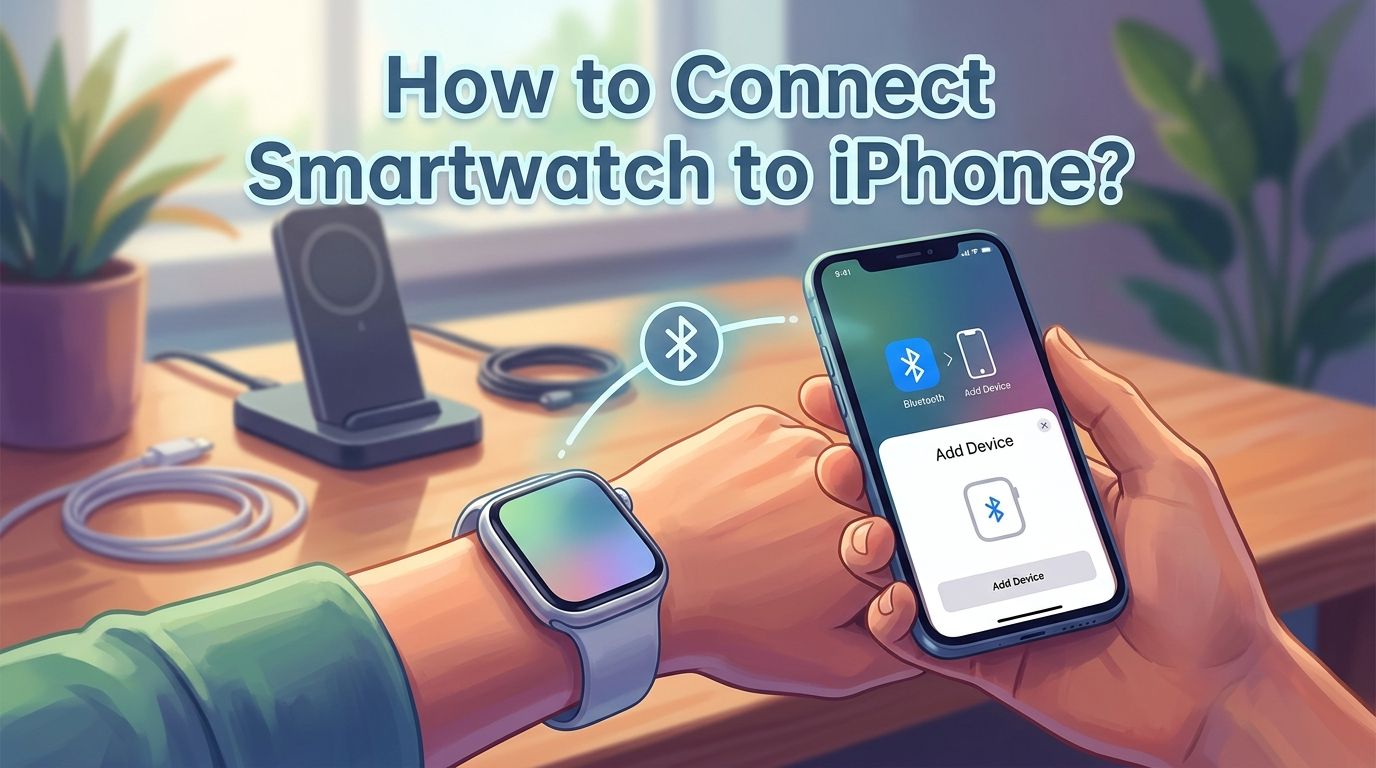
How to Connect Smartwatch to iPhone? A Complete Guide
So you just got a brand new smartwatch and you’re staring at it wondering how to connect it to your iPhone. You are not alone. Millions of people go through this exact frustration every day.
Whether you own an Apple Watch, a Samsung Galaxy Watch, a Garmin, or a budget smartwatch from another brand, the pairing process can feel confusing.
Different watches use different apps, different steps, and different requirements. One wrong move and you are stuck in a loop of failed connections.
In a Nutshell
- Check compatibility first. Not every smartwatch works perfectly with an iPhone. Apple Watch offers the best integration with iOS. Third party watches like Samsung Galaxy Watch, Garmin, and Fitbit work through their own companion apps with limited features compared to their Android experience.
- Bluetooth and Wi Fi must be on. Your iPhone needs Bluetooth turned on and a stable Wi Fi or cellular connection before you start the pairing process. Without these, your smartwatch will not detect your phone.
- Download the correct companion app. Apple Watch uses the built in Watch app on your iPhone. Other brands require you to download their specific app from the App Store, such as Garmin Connect, Fitbit, or Samsung Galaxy Watch app.
- Keep both devices close together. During pairing, your smartwatch and iPhone should be within a few inches of each other. Distance causes signal drops and failed connections.
- Update your software. Running outdated iOS or outdated smartwatch firmware is one of the most common reasons for pairing failures. Always update both devices before you attempt to connect them.
- Reset and retry if pairing fails. If your smartwatch refuses to connect, restart both devices, forget the Bluetooth connection, and try the pairing process from scratch. This fixes most connection issues.
How to Check if Your Smartwatch Is Compatible with Your iPhone
Before you begin the pairing process, you need to confirm that your smartwatch works with an iPhone. Apple Watch has the deepest integration with iOS and requires an iPhone to function. The latest Apple Watch models need an iPhone 11 or later running the most recent version of iOS.
Third party smartwatches have varying levels of compatibility. Brands like Garmin, Fitbit, and Amazfit support iPhone through their iOS companion apps. Samsung Galaxy Watch also works with iPhone, but you lose some features that are only available on Samsung phones.
Budget smartwatches from lesser known brands may have limited iPhone support. Always check the product description or the manufacturer’s website to verify iOS compatibility before you attempt to pair. If the companion app is available on the App Store, your smartwatch will most likely work with your iPhone.
How to Prepare Your iPhone for Smartwatch Pairing
Preparation is a simple but critical step that many people skip. Start by updating your iPhone to the latest version of iOS. Go to Settings, then General, then Software Update. Install any available updates before you proceed.
Next, make sure Bluetooth is turned on. Open Settings, tap Bluetooth, and toggle it on. Also confirm your iPhone is connected to Wi Fi or a cellular network. Some smartwatches download additional data during the pairing process and need an internet connection.
Turn off Airplane Mode if it is enabled. Airplane Mode disables Bluetooth and Wi Fi, which blocks all communication between your devices. Finally, charge your iPhone to at least 50% battery. Pairing and initial syncing can take several minutes, and you do not want your phone dying in the middle of setup.
How to Connect an Apple Watch to Your iPhone Step by Step
Connecting an Apple Watch to your iPhone is a smooth process when you follow the right steps. Put your Apple Watch on your wrist and press and hold the side button until the Apple logo appears. Keep the watch close to your unlocked iPhone.
A message will appear on your iPhone that says “Use your iPhone to set up this Apple Watch.” Tap Continue. If this message does not appear, open the Watch app on your iPhone, tap All Watches, then tap Add Watch. Choose “Set Up for Myself.”
Point your iPhone camera at the swirling animation on your Apple Watch. This pairs the two devices automatically. If the camera does not work, tap “Pair Apple Watch Manually” and follow the on screen prompts. After pairing, choose to set up as a new watch or restore from a backup.
Follow the remaining prompts to configure your passcode, Apple Account, Apple Pay, and health settings. Keep both devices close together until the setup finishes completely.
Pros: Seamless integration with iPhone, full access to iOS notifications, Apple Health sync, and App Store.
Cons: Only works with iPhone, requires a specific minimum iPhone model and iOS version.
How to Connect a Samsung Galaxy Watch to Your iPhone
Samsung Galaxy Watch can pair with an iPhone, but the experience is more limited than on an Android phone. Download the Samsung Galaxy Watch app from the App Store on your iPhone. Open the app and sign in with your Samsung account or create one.
Turn on your Samsung Galaxy Watch and place it near your iPhone. The app should detect your watch automatically. Tap on your watch name in the app and follow the pairing instructions on screen. You may need to confirm a pairing code on both devices.
Some features like Samsung Pay, Bixby, and certain watch faces may not be available when paired with an iPhone. Health tracking, notifications, and basic watch functions will still work. The connection relies on Bluetooth, so keep both devices close during setup.
Pros: Works with iPhone, good health and fitness tracking, stylish designs.
Cons: Limited features on iPhone compared to Android, fewer app options, Samsung Pay may not function.
How to Connect a Garmin Watch to Your iPhone
Garmin watches are popular among fitness enthusiasts, and they pair well with iPhones. Download the Garmin Connect app from the App Store. Open the app and create a Garmin account or sign in to your existing one.
Turn on your Garmin watch and enable pairing mode. On most Garmin models, go to Settings, then Phone, then Pair Phone on the watch itself. In the Garmin Connect app, tap the menu icon, select Garmin Devices, and tap Add Device.
The app will search for nearby Garmin watches. Select your watch from the list and confirm the pairing code displayed on both screens. The initial sync may take a few minutes as the app downloads your watch data.
Garmin Connect syncs your fitness data, GPS routes, heart rate, and sleep tracking directly with the app. You can also enable it to share data with Apple Health for a unified health dashboard on your iPhone.
Pros: Excellent GPS and fitness tracking, long battery life, strong iPhone app support.
Cons: Limited smartwatch features compared to Apple Watch, no direct App Store access on the watch.
How to Connect a Fitbit Watch to Your iPhone
Fitbit watches connect to iPhones through the Fitbit app, which is available on the App Store. Download the app, open it, and sign in with your Google account or create a new Fitbit profile.
Tap your profile icon in the app, then tap Set Up a Device. Choose your Fitbit model from the list. Make sure your Fitbit watch is charged and nearby. The app will search for your device using Bluetooth.
Follow the on screen instructions to complete the pairing. You may need to enter a four digit code displayed on your Fitbit watch. Once paired, the app will sync your health data including steps, heart rate, sleep, and exercise stats.
Fitbit also allows you to sync data with Apple Health through the app settings. This means your Fitbit activity data can appear alongside other health information on your iPhone.
Pros: Affordable, strong health and fitness features, good iPhone app.
Cons: Limited app ecosystem on the watch, Google account required, fewer smartwatch features than Apple Watch.
How to Connect a Budget or Generic Smartwatch to Your iPhone
Many budget smartwatches from brands like Amazfit, Xiaomi, Noise, and others also work with iPhones. The first step is to find the correct companion app. Check the user manual or the watch packaging for the app name. Common apps include Zepp (for Amazfit), Mi Fitness (for Xiaomi), and various brand specific apps.
Download the companion app from the App Store. Open it and create an account. Turn on your smartwatch and enable Bluetooth pairing mode. Some watches require you to scan a QR code displayed on the watch screen using the companion app.
Tap to pair your watch once the app detects it. Follow the on screen prompts to complete the setup. Grant the app the required permissions for notifications, health data, and Bluetooth access on your iPhone.
Pros: Very affordable, basic fitness tracking works well, most have iPhone compatible apps.
Cons: Limited features, lower build quality, companion apps may have fewer functions or occasional bugs.
How to Fix a Smartwatch That Will Not Connect to Your iPhone
Connection failures happen more often than you might think. Start with the basics. Restart both your iPhone and your smartwatch. A simple reboot clears temporary software glitches that block pairing.
Go to your iPhone’s Bluetooth settings and check if your smartwatch appears in the list of paired devices. If it does, tap the info icon next to it and select “Forget This Device.” Then try pairing again from scratch using the companion app.
Make sure no other phone is already connected to the smartwatch. Most smartwatches can only pair with one phone at a time. If the watch was previously paired with a different device, you need to reset it first.
Check that both your iPhone and smartwatch are running the latest software versions. Outdated firmware is a leading cause of pairing failures. Update both devices and try again.
How to Fix Bluetooth Pairing Errors Between Your Smartwatch and iPhone
Bluetooth errors are one of the most common issues people face during smartwatch setup. Toggle Bluetooth off and back on from your iPhone’s Settings. This refreshes the Bluetooth radio and clears minor connection bugs.
If that does not work, reset your iPhone’s network settings. Go to Settings, then General, then Transfer or Reset iPhone, then Reset, and select Reset Network Settings. This will erase saved Wi Fi passwords but often fixes stubborn Bluetooth problems.
Move away from areas with heavy wireless interference. Microwaves, other Bluetooth devices, and crowded Wi Fi networks can disrupt the Bluetooth signal between your watch and phone.
On the smartwatch side, check if the watch has a factory reset option. Resetting the watch to factory settings and starting the pairing process fresh often resolves persistent Bluetooth errors. Refer to your watch manufacturer’s guide for reset instructions.
How to Keep Your Smartwatch and iPhone Connection Stable
A successful pairing is just the beginning. You need to maintain a stable connection for your smartwatch to work properly. Keep Bluetooth enabled on your iPhone at all times. Turning Bluetooth off will disconnect your watch and stop notifications.
Allow the companion app to run in the background on your iPhone. Go to Settings, then the companion app, and make sure Background App Refresh is turned on. This allows the app to sync data even when you are not actively using it.
Avoid force closing the companion app from the app switcher. Force closing prevents the app from maintaining its Bluetooth connection with your watch. Let iOS manage the app in the background.
Update both your iPhone and smartwatch firmware regularly. Software updates often include Bluetooth stability fixes and performance improvements that keep your connection reliable over time.
How to Sync Health and Fitness Data from Your Smartwatch to Your iPhone
One of the main reasons people connect a smartwatch to an iPhone is health tracking. Apple Watch automatically syncs all health data with the Apple Health app. Steps, heart rate, workouts, sleep, and more appear in your Health dashboard with no extra setup needed.
For third party watches, the process involves an extra step. Open your smartwatch’s companion app, go to settings, and enable Apple Health integration. Apps like Garmin Connect, Fitbit, and Zepp all offer the option to share data with Apple Health.
Once you enable this sync, your fitness data from any smartwatch brand will appear in the Apple Health app. This gives you a single place to view all your health metrics, regardless of which watch you use.
Grant the companion app permission to read and write health data in Apple Health. Go to Settings, then Health, then Data Access and Devices on your iPhone. Select the companion app and enable all relevant health categories.
How to Unpair Your Smartwatch from Your iPhone Safely
If you want to switch watches or give your smartwatch to someone else, you need to unpair it correctly. For Apple Watch, open the Watch app on your iPhone, tap All Watches, tap the info icon next to your watch, and select Unpair Apple Watch. This creates a backup and removes the watch from your account.
For third party smartwatches, open the companion app and look for a Remove Device or Unpair option in the device settings. Also go to your iPhone’s Bluetooth settings, find the watch, and tap “Forget This Device.”
Skipping the unpair step can cause problems if you try to pair a new watch later. Your iPhone may still think it is connected to the old watch, which blocks new connections. Always complete the full unpair process before setting up a different smartwatch.
After unpairing, restart your iPhone to clear any remaining connection data. This gives you a clean slate for pairing your next smartwatch.
Frequently Asked Questions
How to Connect Any Smartwatch to an iPhone Without an App?
Most smartwatches require a companion app for full functionality. However, some basic Bluetooth watches can connect through your iPhone’s Bluetooth settings directly. Go to Settings, tap Bluetooth, and select the watch from the available devices list. Keep in mind that without a companion app, you will miss features like notifications, health syncing, and firmware updates.
How to Fix a Smartwatch That Keeps Disconnecting from iPhone?
Start by restarting both devices. Make sure Bluetooth is enabled and Background App Refresh is turned on for the companion app. Check that both devices have the latest software. If the problem continues, forget the device in Bluetooth settings and pair again from the beginning using the companion app.
How to Connect an Apple Watch to a New iPhone Without the Old Phone?
If you no longer have your old iPhone, you can erase your Apple Watch directly from the watch. Go to Settings, then General, then Reset, and tap Erase All Content and Settings. After the reset, pair the watch with your new iPhone using the Watch app. If you had a backup stored in iCloud, you can restore it during setup.
How to Know if a Smartwatch Is Compatible with iPhone?
Check the App Store for the smartwatch’s companion app. If the app exists and supports your iPhone model, the watch is compatible. You can also visit the manufacturer’s website and look for iOS compatibility details. Apple Watch requires an iPhone 11 or later for the newest models.
How to Connect Two Smartwatches to One iPhone?
Apple supports pairing multiple Apple Watches to a single iPhone. Open the Watch app, tap All Watches, and tap Add Watch. For third party brands, check if the companion app supports multiple watch connections. Most apps allow only one watch at a time, so you may need to unpair the first watch before adding a second one.

Hi, I’m Lucy Jones, a dedicated watch enthusiast and reviewer. I spend my time hunting down, testing, and evaluating the most intriguing wristwatches on the market. My goal is to guide you through the overwhelming choices with honest, hands-on insights into every timepiece.