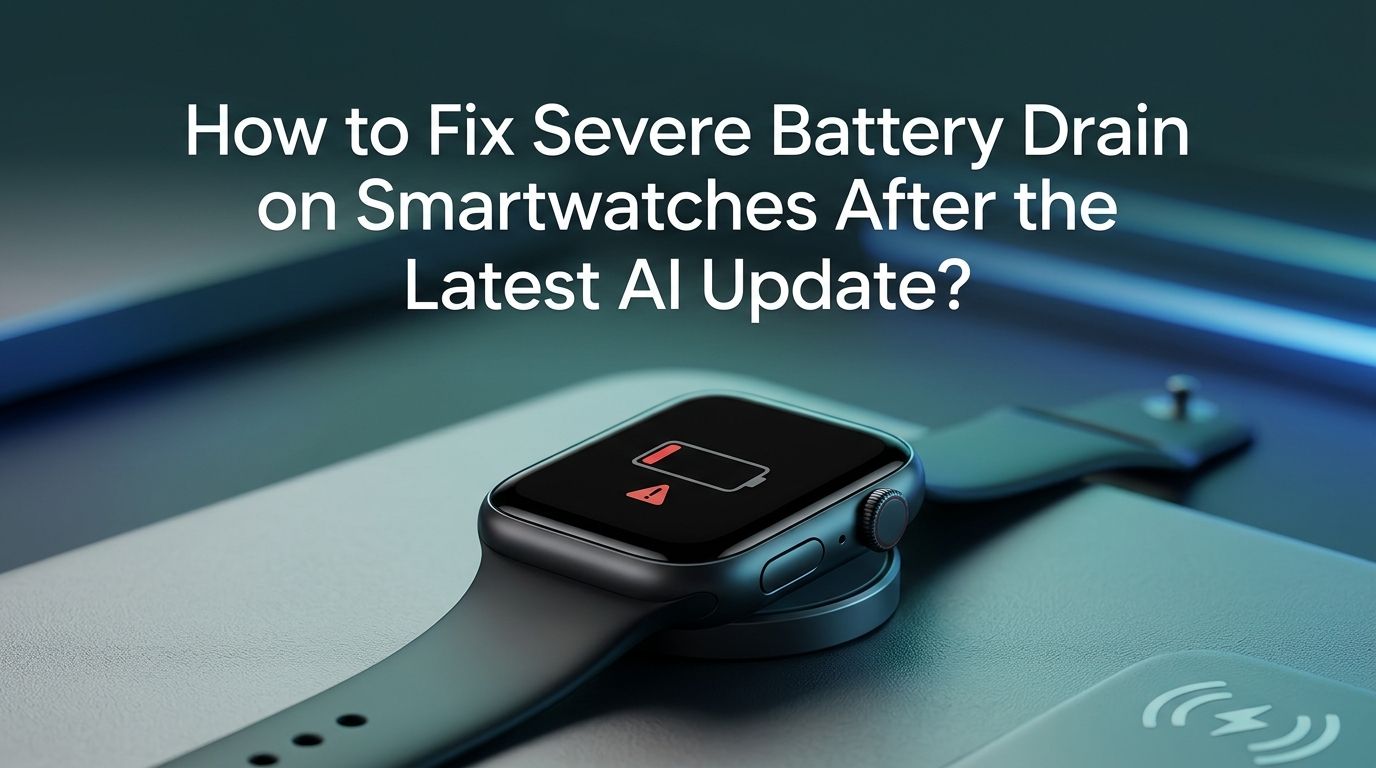
How to Fix Severe Battery Drain on Smartwatches After the Latest AI Update?
If your smartwatch started dying halfway through the day right after that latest AI update, you are not alone.
Thousands of users across Apple Watch, Samsung Galaxy Watch, Google Pixel Watch, and Garmin models have reported 30% to 60% shorter battery life following recent firmware updates packed with new AI features.
The reason is simple. Modern smartwatch updates now include AI health monitoring, on device language models, smart reply engines, and always listening voice assistants. The good news? You can fix this.
Key Takeaways
- AI features are the main cause of battery drain after recent smartwatch updates. Always on voice assistants, smart replies, live translation, and AI health monitoring all run background processes that consume significant power even when you are not using them.
- Disabling hotword detection alone (such as “Hey Google” or “Hey Siri” on your watch) can save multiple hours of battery life per day because the microphone and processor stop constantly listening for wake words.
- A factory reset after a major update often fixes hidden battery drain caused by corrupted cache files and improperly migrated data. Many users report this as the single most effective fix after a problematic update.
- Turning off the always on display can add five or more hours of runtime to most smartwatches. Pair this with a simple, dark watch face for even bigger gains on OLED screens.
- Not all AI features waste battery equally. Some features like adaptive battery management actually help. The key is to disable the ones you do not use while keeping the ones that provide real value.
- Check for follow up patches regularly. Manufacturers like Samsung have already halted and re released buggy updates. A hotfix may already be available that addresses the worst battery drain issues automatically.
How to Check Which AI Features Are Draining Your Battery
Before you start disabling features, find out exactly where your battery power is going. Every major smartwatch platform includes a built in battery usage tool that shows you a breakdown by app and service.
On Samsung Galaxy Watch, go to Settings, then Battery, then Battery Usage. Look for entries like “Samsung Health AI,” “Galaxy AI,” or “Google Assistant.” If any of these show unusually high percentages, they are your primary targets.
On Google Pixel Watch and other Wear OS devices, open Settings, tap Battery, and review the list of apps sorted by consumption. Pay close attention to AICore, which is Google’s system service for running on device AI models. This service has been flagged by multiple users as a significant battery hog.
On Apple Watch, open the Watch app on your iPhone, go to General, then Usage. Check which complications and background app activities are drawing the most power. Siri processing and health analysis often top the list after a major watchOS update.
Write down the top three battery consumers. This gives you a clear action plan for the steps that follow. Fixing battery drain becomes much easier when you know the exact source of the problem instead of guessing.
Disable Always On Voice Assistant and Hotword Detection
The single biggest battery saver on most smartwatches is turning off always on voice detection. Features like “Hey Google,” “Hey Siri,” and Samsung’s Bixby wake word keep the microphone and processor in a constant state of low level listening. This background activity runs 24 hours a day.
On Wear OS watches, go to Settings, then Google, then Digital Assistant, and toggle off “Hey Google.” You can still use the assistant manually by long pressing the side button. On the Pixel Watch, also disable “Raise to Talk” under Settings, then Gestures, then Raise to Talk. This feature triggers the AI assistant through wrist movement without any voice command, which adds another layer of battery usage.
On Apple Watch, open Settings on the watch, go to Siri, and turn off “Listen for Hey Siri.” You can still activate Siri by holding the Digital Crown.
On Samsung Galaxy Watch, navigate to Settings, then Apps, then Bixby Voice, and disable wake word detection. If you have Google Assistant installed, disable its hotword detection separately.
Pros: Immediate and significant battery savings, often adding two to four extra hours of use. No loss of core watch functions.
Cons: You must physically press a button or tap the screen to activate the voice assistant, which is slightly less convenient during workouts or when your hands are busy.
Turn Off the Always On Display
The always on display (AOD) is one of the largest single sources of battery consumption on any smartwatch. It keeps pixels lit at all times so you can glance at the time without raising your wrist. While convenient, this feature can reduce your total battery life by five or more hours.
To disable AOD on most Wear OS watches, go to Settings, then Display, then Always On Display, and toggle it off. On Apple Watch, go to Settings, then Display and Brightness, and turn off Always On.
After disabling AOD, your watch screen will turn completely dark when not in use. It will light up when you raise your wrist or tap the screen. Most users find this adjustment takes only a day or two to get used to.
Pair this change with a simpler watch face. Animated watch faces and those with multiple live complications (weather, heart rate, stocks) refresh data frequently and drain extra power. Choose a dark, minimal watch face with one or two static complications. On OLED screens, black pixels are essentially turned off, which directly reduces display power consumption.
Pros: One of the most impactful single changes you can make. Five plus hours of extra battery is common.
Cons: You lose the convenience of glancing at your watch without moving your wrist. Some watches also hide workout stats on screen when AOD is off, though newer models like the Pixel Watch keep workout data visible.
Disable AI Smart Replies and Predictive Text on Your Watch
Smart reply features on your smartwatch use generative AI to scan incoming messages and suggest context aware responses. This means the watch processor is constantly analyzing text on screen and running inference through a language model. The result is a small convenience that costs measurable battery life.
On Wear OS watches with Google Messages, open the Messages app settings on your watch and turn off Suggestions. If you use Gboard on your watch, go to Settings, then Text Correction, then Next Word Suggestions, and toggle it off.
On Samsung Galaxy Watch, open the Samsung Keyboard settings and disable predictive text and smart suggestions. Galaxy AI powered reply suggestions in the Messages app can also be turned off in the app’s own settings menu.
On Apple Watch, go to Settings, then Messages, and review the smart reply options. Disable any AI powered suggestion features you do not regularly use.
Pros: Reduces continuous background processing. Helps extend battery by 30 to 60 minutes depending on how many messages you receive daily.
Cons: You lose auto suggested replies and must type or dictate responses manually, which takes a bit longer.
Turn Off AI Health Monitoring Features You Do Not Use
Recent updates have added AI powered health features like irregular heart rhythm detection, advanced sleep stage analysis, skin temperature trending, and blood oxygen monitoring. Each of these features uses sensors and processing power around the clock.
If you do not actively use a specific health feature, disabling it can save meaningful battery life. On Samsung Galaxy Watch, go to Samsung Health, then Settings, and review each monitoring option. Turn off continuous heart rate monitoring if you only need it during workouts. Disable blood oxygen monitoring during sleep if you have no medical need for it.
On Apple Watch, open the Watch app on your iPhone, go to Health, then Heart, and switch continuous heart rate monitoring to manual or workout only. Do the same for blood oxygen measurements under the Blood Oxygen section.
On Garmin watches, go to Settings, then Health and Wellness, and disable Pulse Ox during sleep and any AI body battery features you do not review regularly.
Pros: Can add one to three hours of battery life, especially if you disable overnight monitoring features.
Cons: You lose passive health tracking data. If you rely on health alerts (such as irregular heart rhythm notifications), keep those features enabled and only disable the ones you genuinely never check.
Perform a Cache Clear and Soft Reset
After a major update, residual cache data from the old software version can cause conflicts and abnormal background processes that drain battery. A cache clear followed by a soft reset often resolves these hidden issues.
On Samsung Galaxy Watch, go to Settings, then Apps, then select each app individually, and tap Clear Cache. Focus on system apps like Samsung Health, Galaxy Wearable, and One UI Home. After clearing the cache for the major apps, restart the watch by holding the power button and selecting Restart.
On Wear OS watches, the process is similar. Go to Settings, then Apps and Notifications, then System Apps. Clear the cache and force stop apps like Google Play Services, AICore, and Wear OS System UI. Force stopping System UI will restart the watch interface automatically.
On Apple Watch, a simple restart often clears temporary files. Hold the side button, then drag the Power Off slider. Wait 30 seconds and turn it back on.
Pros: Quick, non destructive, and often fixes battery drain caused by corrupted temporary files. No data loss occurs.
Cons: May not fix deeper software issues introduced by the update. If battery drain continues after a cache clear, a factory reset may be necessary.
Factory Reset as a Last Resort Fix
If nothing else works, a factory reset is the most reliable way to eliminate software related battery drain after a bad update. Multiple users on Reddit and Samsung community forums confirmed that a full reset after the One UI 8 update restored their Galaxy Watch battery life from less than one day back to the expected three to four days.
Before resetting, back up your watch data. On Samsung Galaxy Watch, use the Galaxy Wearable app on your phone to create a backup. On Apple Watch, your data backs up automatically to your paired iPhone. On Wear OS, Google account syncing preserves most settings.
To factory reset a Samsung Galaxy Watch, go to Settings, then General, then Reset. On Wear OS, go to Settings, then System, then Disconnect and Reset. On Apple Watch, go to Settings, then General, then Reset.
After the reset, set up your watch as a new device rather than restoring from backup. Restoring from backup can reintroduce the same corrupted files that caused the problem. Manually reconfigure your settings and reinstall only the apps you actually use.
Pros: Most effective solution for persistent battery drain. Gives your watch a clean software slate.
Cons: Time consuming. You lose all local data, watch faces, and custom settings. You must reconfigure everything from scratch, which can take 30 to 60 minutes.
Check for and Install Follow Up Patches
Manufacturers are aware of post update battery drain issues and often release hotfix patches within days or weeks. Samsung, for example, halted the One UI 8 rollout for the Galaxy Watch 4 in late 2025 after widespread reports of battery drain and broken sensors. An emergency fix followed shortly after.
Check for updates regularly. On Samsung Galaxy Watch, go to Settings, then Software Update, then Download and Install. On Wear OS, go to Settings, then System, then System Updates. On Apple Watch, open the Watch app on your iPhone and go to General, then Software Update.
Enable automatic updates if your watch supports the option. This ensures you receive patches as soon as they become available. You can also follow your watch manufacturer’s community forums and social media channels for real time information about known bugs and incoming fixes.
Pros: A patch can fix the root cause of battery drain without any effort on your part. No settings changes or data loss required.
Cons: Patches may take days or weeks to arrive. There is no guarantee that the first patch will fully resolve the issue. Some users have reported that follow up updates introduced new problems of their own.
Reduce Background App Activity and Notifications
Every notification that lights up your screen and vibrates your wrist uses battery. Every app running in the background checking for updates, syncing data, or refreshing widgets adds to the drain. After an AI update, some apps increase their background activity to support new AI features.
Go through your notification settings and disable alerts for apps that do not need immediate attention on your wrist. You do not need every email, social media like, or promotional notification buzzing your watch. Keep notifications only for calls, messages, and critical health alerts.
On Wear OS, go to Settings, then Apps, and review which apps have background activity permissions. Revoke background access for apps you rarely use on the watch. On Apple Watch, open the Watch app on your phone, scroll to each app, and disable “Show on Apple Watch” for non essential apps.
Uninstall watch apps you do not use. Unused apps can still run background services that consume battery and memory. A leaner app list means fewer processes competing for your watch’s limited resources.
Pros: Fewer interruptions and measurable battery savings. Reduces both screen wake events and background CPU usage.
Cons: You may miss non critical notifications that are occasionally useful. Requires some time to go through each app’s settings individually.
Optimize Connectivity Settings for Better Battery Life
Your smartwatch maintains multiple wireless connections at all times, including Bluetooth, Wi Fi, and sometimes LTE. Each active radio drains battery. After an AI update, some watches enable Wi Fi or LTE more aggressively to support cloud based AI processing.
Turn off Wi Fi if your watch stays connected to your phone via Bluetooth. On most smartwatches, Bluetooth alone handles notification syncing and basic data transfer. Wi Fi is only needed when your phone is out of Bluetooth range or for standalone features like streaming music.
On Samsung Galaxy Watch, go to Settings, then Connections, then Wi Fi, and set it to “Auto” or “Off” instead of “Always On.” Several Galaxy Watch 4 users discovered that the One UI 8 update kept turning Wi Fi on automatically, causing significant overnight battery drain.
If you have an LTE model and do not need standalone cellular functionality daily, disable LTE and rely on your phone’s connection. LTE is one of the most power hungry radios on a smartwatch and can cut battery life in half when active.
Disable NFC and GPS when not in use. NFC is only needed for contactless payments, and GPS is only required during outdoor workouts or navigation.
Pros: Significant battery savings, especially from disabling Wi Fi and LTE. Easy to toggle back on when needed.
Cons: Some standalone features stop working without Wi Fi or LTE. You may lose the ability to receive notifications when away from your phone.
Adjust Screen Brightness and Timeout Settings
Display brightness is a constant, passive battery consumer on your smartwatch. Most users keep brightness higher than necessary, especially indoors. Lowering it by even 20 to 30% can extend battery life noticeably without sacrificing readability.
Go to Settings, then Display, then Brightness on your smartwatch. Drop the brightness to a comfortable level for indoor use. Enable adaptive brightness if your watch supports it. Adaptive brightness adjusts the screen automatically based on ambient light, so you get full brightness outdoors and dimmer light indoors without manual changes.
Also reduce the screen timeout duration. The default on many watches is 15 to 30 seconds. Reducing this to 10 seconds means the display turns off faster after each interaction, saving cumulative battery throughout the day.
On Samsung Galaxy Watch, you can also enable “Show last app” with a shorter timeout so the screen goes dark faster but returns to your last used app when you raise your wrist. This balances usability with power savings.
Pros: Easy adjustment with no feature loss. Adaptive brightness provides a good balance between visibility and power savings.
Cons: Very low brightness can be hard to read in direct sunlight. Shorter screen timeouts may feel rushed during longer interactions with the watch face.
Use Power Saving or Battery Saver Mode Strategically
Every modern smartwatch includes a power saving mode that limits features to extend battery life. This mode is useful as a daily strategy, not just an emergency fallback. You can schedule it to activate during specific times when you do not need full functionality.
On Samsung Galaxy Watch, Power Saving mode disables AOD, limits background sync, reduces performance, and turns off some sensors. You can also use “Watch Only Mode” for extreme situations, which turns the watch into a basic time display that can last up to 27 days.
On Pixel Watch, Battery Saver mode pauses background health tracking (while still recording during active workouts), dims the display, and delays non critical notifications. On Apple Watch, Low Power Mode reduces background heart rate measurements, disables AOD, and limits Wi Fi usage.
A practical approach is to enable power saving mode during sleep or during work hours when you do not need continuous health tracking or notifications. Then switch back to full mode during workouts or when you leave the house.
Pros: Dramatically extends battery life. Some modes can double or triple your watch’s runtime.
Cons: You lose access to several features while the mode is active. Continuous health tracking pauses in most implementations, creating gaps in your data.
Reinstall the Wearable Companion App on Your Phone
Sometimes the battery drain is not caused by the watch itself but by the companion app on your paired phone. The Samsung Galaxy Wearable app, Google Pixel Watch app, or Apple Watch app manages the connection between your phone and watch. A buggy companion app can cause excessive syncing and communication that drains both devices.
On Android, go to Settings, then Apps, then find the wearable companion app (Samsung Wearable, Galaxy Wearable Accessory Service, or Pixel Watch). Clear the cache and data for each related app. If the problem persists, uninstall and reinstall the entire companion app stack from the Play Store.
Multiple Samsung Galaxy Watch users on Reddit confirmed that reinstalling the Samsung Wearable app, Accessory Service, and related plugins on their phone resolved persistent battery drain that no other fix addressed. This is especially relevant if you recently switched phones or updated your phone’s operating system around the same time as the watch update.
On iPhone, delete the Watch app (if possible on your version) or simply unpair and re pair the Apple Watch. This forces a fresh connection and re syncs all data cleanly.
Pros: Targets a commonly overlooked cause of battery drain. No watch reset required.
Cons: You may need to set up some watch preferences again after reinstalling the companion app. The process can take 15 to 20 minutes.
What to Do If Your Watch Battery Health Has Degraded
Battery drain after an update is not always a software problem. If your smartwatch is more than two years old, the battery itself may have degraded to the point where it cannot handle the increased processing demands of a new AI heavy update.
On Apple Watch, open Settings, then Battery, then Battery Health. If the maximum capacity is below 80%, Apple recommends a battery replacement. Reduced capacity means your battery holds less charge overall, and demanding new features will deplete it faster.
Samsung Galaxy Watch does not offer a native battery health percentage, but you can use third party apps on Wear OS like Wear Battery Guardian to get deeper insights into your battery’s condition. If your watch barely lasts a few hours even after a factory reset and all optimizations, degraded battery health is the likely cause.
Consider contacting the manufacturer for a battery replacement service if your watch is otherwise functioning well. This is usually cheaper than buying a new watch and can restore your battery life to near original levels.
Pros: Identifies a hardware issue that no software fix can solve. Battery replacement restores full capacity.
Cons: Battery replacement costs money and may void your warranty if done by a third party. Some smartwatch models have sealed designs that make battery replacement difficult or impossible.
Frequently Asked Questions
Why does my smartwatch battery drain so fast after an update?
Software updates often introduce new AI features that run in the background. These include always on voice assistants, predictive health monitoring, smart reply engines, and cloud connected services. Each feature uses processing power, memory, and network connectivity. The combination of all these new background tasks can reduce your battery life by 30% to 60% compared to the previous software version.
Will a factory reset fix my smartwatch battery drain?
In many cases, yes. A factory reset clears corrupted cache files, removes improperly migrated data, and gives the new software a clean starting point. Many users on community forums report that a factory reset is the single most effective solution for post update battery drain. Set up your watch as a new device after the reset instead of restoring from backup for the best results.
Should I disable all AI features on my smartwatch?
No. Some AI features like adaptive battery management and smart alarm timing can actually improve your experience and save power. The goal is to disable the features you do not use while keeping the ones that add value. Check your battery usage stats to identify which specific features consume the most power and start by disabling those.
How long should I wait for a patch before trying manual fixes?
Do not wait. Start with the easy fixes like disabling AOD, turning off hotword detection, and clearing the cache right away. These changes are reversible and will improve your battery life immediately. Meanwhile, check for software patches every few days. If a patch arrives and fixes the underlying problem, you can re enable your preferred features.
Can a new update damage my smartwatch battery permanently?
A software update cannot physically damage your battery. However, it can cause processes that keep the battery under heavy load for extended periods. Prolonged heavy usage can generate extra heat, which may accelerate long term battery degradation if it continues for weeks or months. Fixing the software drain quickly helps protect your battery’s long term health.
Is it better to use Wi Fi or Bluetooth to save smartwatch battery?
Bluetooth consumes significantly less power than Wi Fi on smartwatches. Keep your watch connected to your phone via Bluetooth for everyday use and only enable Wi Fi when you need standalone features like music streaming or when your phone is out of Bluetooth range. Disabling Wi Fi when it is not needed is one of the easiest ways to reduce daily battery consumption.

Hi, I’m Lucy Jones, a dedicated watch enthusiast and reviewer. I spend my time hunting down, testing, and evaluating the most intriguing wristwatches on the market. My goal is to guide you through the overwhelming choices with honest, hands-on insights into every timepiece.