How to Sync Legacy Smartwatch Health Data With New AI Fitness Platforms?
Your old smartwatch holds years of valuable health data. Steps, heart rate, sleep, workouts, and more sit locked inside one app.
Now you want to move to a new AI fitness platform that promises smarter insights and personal coaching. The problem is simple but frustrating. Your history does not move with you automatically.
This guide solves that exact problem. You will learn how to export, convert, and import your legacy data the right way. You will also learn which tools work best for each device. Let us bring your full health story into your new AI world.
Key Takeaways
- Export your data first. Almost every legacy smartwatch lets you download your full history. Fitbit uses Google Takeout, Apple uses an XML export, and Garmin and Samsung have their own export menus.
- Hub apps make life easier. Platforms like Apple Health and Google Health Connect act as central storage. Many AI fitness platforms read directly from these hubs, which removes the need for manual file transfers.
- Bridge apps fill the gaps. Tools like Health Sync and FitnessSyncer move data between services that do not talk to each other. They handle the hard part for you.
- File formats matter a lot. You will deal with CSV, JSON, XML, FIT, TCX, and GPX files. Each AI platform accepts different ones, so check before you import.
- Privacy is your right. Under laws like GDPR, you can demand a full copy of your health data. Always read the privacy policy of any new AI platform before you connect.
- Patience pays off. Some exports take 3 to 7 days to arrive. Plan your switch ahead of time so you do not lose access during the move.
Why Legacy Smartwatch Data Holds Real Value
Your old data is not just numbers on a screen. It is a record of your body over time. AI fitness platforms thrive on long term patterns. They study your resting heart rate trends, your sleep cycles, and your training load across months or years.
When you feed an AI only fresh data, it cannot spot slow changes. A two year history reveals far more than two weeks of new readings. For example, the AI can detect a slow drop in your fitness or a rising stress trend. This context helps it give better advice.
Keeping your legacy data also protects your motivation. Seeing your progress over time keeps you going. Losing it can feel like erasing your hard work. That is why the sync process is worth the effort.
Understanding the Main Sync Problem First
The core problem is fragmentation. Each smartwatch brand stores data in its own closed system. Fitbit data lives in the Fitbit app. Garmin data lives in Garmin Connect. These systems were built to keep you inside their ecosystem.
New AI fitness platforms often support only a few input sources. They may read from Apple Health or Google Health Connect, but not from your specific old watch directly. This mismatch creates the gap you need to bridge.
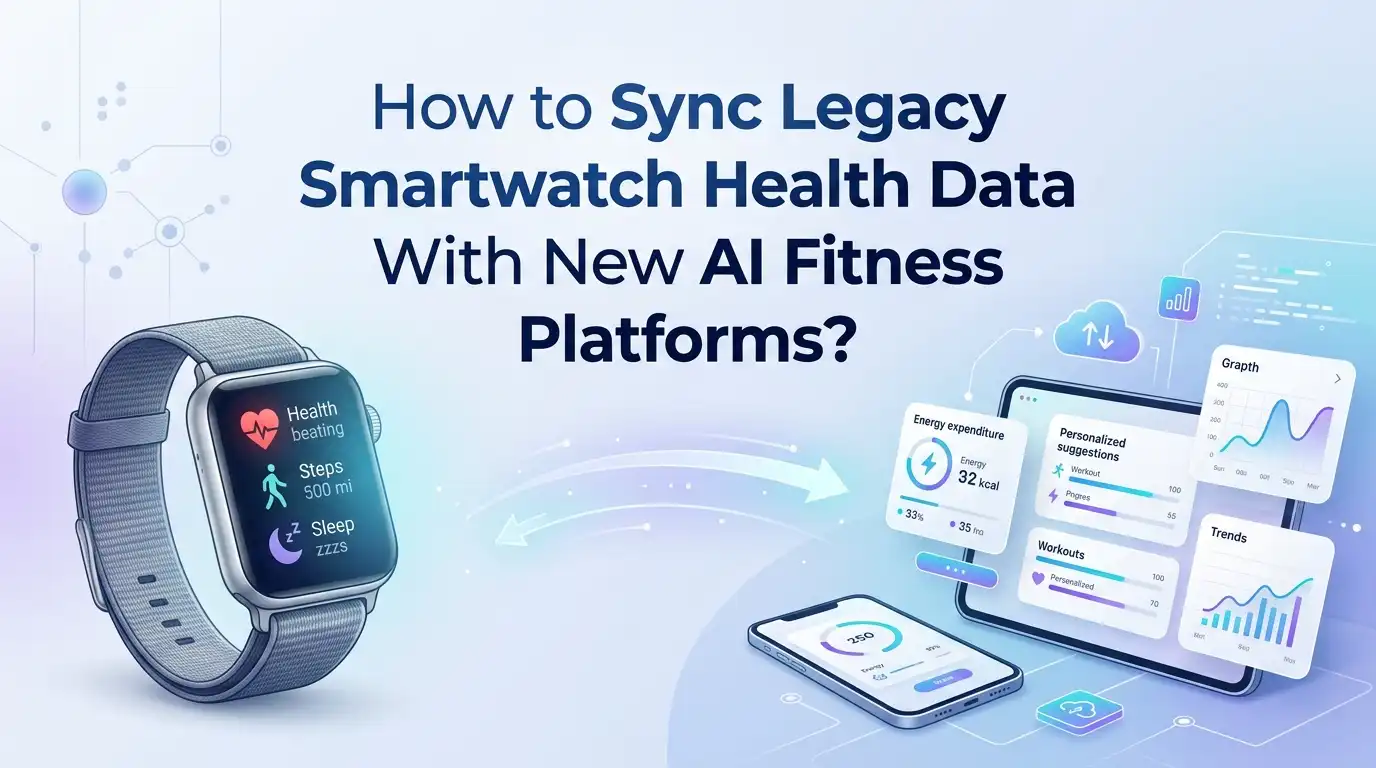
There are three main ways to close this gap. You can export and import files by hand. You can use a central hub app as a middle layer. Or you can use a bridge app that syncs automatically. Each method suits a different situation, and we will cover all three in detail below.
Step One: Export Your Data From the Old Smartwatch App
Your first job is to get your data out of the old app. Every major brand offers an export option, though the steps differ.
For Fitbit, log into your account and use Google Takeout. Select your Fitbit data and request the archive. You will get an email with a download link, often within a few hours to a few days. The files arrive in JSON and CSV format inside a zip folder.
For Apple Health, open the Health app, tap your profile picture, and choose Export All Health Data. This creates one large XML file inside a zip. For Garmin Connect and Samsung Health, look in the account or settings menu for an export or download option. Save every file somewhere safe before you continue.
Pros: You own a full copy of your data and control where it goes. Cons: The files can be huge, hard to read, and slow to arrive.
Step Two: Know Your File Formats Before You Import
Once you have your files, you need to understand what they contain. Different formats hold different details, and your new AI platform will accept only some of them.
CSV files store simple tables of numbers, which is great for steps, weight, and heart rate. JSON files hold raw structured data, common in Fitbit exports. XML is what Apple Health uses, and it packs everything into one big file.
For workouts with GPS, you will see FIT, TCX, and GPX files. FIT files hold the most detail, including sensor data and manufacturer info. TCX adds heart rate and cadence to route data. GPX is the simplest and stores mostly location and time.
Check your target platform’s supported formats first. If it wants CSV but you have JSON, you may need a converter tool, which we cover next.
Step Three: Convert Files When Formats Do Not Match
Sometimes your export format will not match what the AI platform wants. This is a common roadblock, but it is easy to fix. Free online converters can change one format into another.
For Apple Health, several free web tools turn the messy export.xml into clean CSV files. This makes the data readable by spreadsheets and most AI platforms. For workout files, converters can switch FIT to TCX or GPX with a few clicks.
You can also use spreadsheet software to clean and reshape CSV data. Remove empty columns, fix dates, and keep only what you need. This step improves how well the AI reads your history.
Pros: Converters unlock data that would otherwise be stuck. Cons: Some detail can be lost during conversion, and large files may slow down free tools or hit upload limits.
Step Four: Use Apple Health as a Central Hub
If you use an iPhone, Apple Health is your best friend. It acts as a single home for data from many sources. Most AI fitness platforms on iOS read directly from Apple Health.
The trick is getting your old watch data into Apple Health first. Some brands, like Samsung Health, can write to Apple Health through their iOS app settings. Open the brand app, find the Apple Health connection, and turn on the data types you want to share.
For brands that do not connect directly, a bridge app can push your data into Apple Health. Once your history sits there, any AI platform you connect simply reads it all at once. This saves you from importing files into each new app one by one.
Pros: One connection feeds many apps and keeps data current. Cons: It works only on iPhone, and historical backfill from older devices can be limited.
Step Five: Use Google Health Connect on Android
Android users have a similar hub called Google Health Connect. It stores fitness and health data in one place on your phone. Many apps now read and write to it.
To use it, install Health Connect if it is not already on your phone. Open it, go to App Permissions, and turn on the apps you want to share data with. Your old watch app, like Mi Fitness or Samsung Health, can send data into Health Connect.
From there, your new AI fitness platform can pull that data with your permission. Google Health also syncs with Health Connect, which adds another layer of central storage. This setup keeps everything flowing without manual file work.
Pros: Native to Android, free, and growing fast in app support. Cons: Some apps only read and do not write, so backfilling old data can be patchy.
Step Six: Try Bridge Apps Like Health Sync and FitnessSyncer
When direct connections fail, bridge apps step in. These tools sit between two services and move data for you. Health Sync is a popular choice that supports many brands.
Health Sync can pull from Fitbit, Garmin Connect, Huawei Health, Coros, and more. It then pushes that data into Apple Health, Google Fit, Health Connect, Strava, or other targets. You set it once and it runs automatically.
FitnessSyncer works in a similar way and connects several services in one dashboard. These apps handle the messy translation between systems so you do not have to. One small note. Some platforms, like Garmin, allow sync out but not sync back in.
Pros: Automatic, ongoing sync with little effort after setup. Cons: Some apps charge a fee, and they may not transfer very old historical data, only new readings.
Step Seven: Connect Directly Through Native Integrations
Many modern AI fitness platforms offer built in connections. This is the cleanest path when it is available. You log in once and grant access.
Look in your AI platform’s settings for a Connect or Integrations menu. You will often see options for Apple Health, Health Connect, Garmin, Strava, and sometimes Fitbit. Choose your source and approve the permission request.
Once linked, the platform reads your data on its own. Some even pull your full history during the first sync, which is exactly what you want for AI learning. Always check how far back the integration reaches before you rely on it.
Pros: Simple, official, and usually keeps data fresh in real time. Cons: Available sources are limited, and direct links to older or discontinued watches are rare.
Step Eight: Import Historical Data Into the AI Platform
Live syncing handles new data well, but your old history needs a separate push. This is where your exported files come back into play. Many AI platforms let you upload past records.
Look for an Import or Upload Data button in your account settings. Garmin Connect, for example, accepts file imports for past activities and body metrics. Upload your CSV, FIT, or TCX files one at a time or in batches.
For AI coaching apps, importing your full Apple Health XML often gives the deepest insight. The more history you provide, the smarter the coaching becomes. Take your time with this step. A complete import is worth more than a quick partial one.
Pros: Restores your full timeline so the AI sees the big picture. Cons: Manual uploads take time, and not every platform supports bulk historical import.
Step Nine: Verify and Clean Your Synced Data
After syncing, do not assume everything is perfect. Errors happen during transfers. You might see duplicate steps, missing workouts, or wrong dates.
Open your new AI platform and check key numbers against your old app. Compare a few recent days and a few old ones to confirm the data lines up. If you see double counts, the cause is often two sources feeding the same metric.
To fix duplicates, turn off one data source for that metric. Keep one trusted source per data type to avoid confusion. Spend a few minutes here. Clean data leads to accurate AI advice, while messy data leads to poor recommendations.
Pros: Catching errors early protects the quality of your insights. Cons: Manual checking takes patience, and fixing duplicates can feel tedious at first.
Step Ten: Protect Your Privacy During the Move
Health data is deeply personal. Moving it around creates privacy risks you should manage. Laws like GDPR classify fitness data as sensitive and give you strong rights.
Before you connect any new AI platform, read its privacy policy. Check who can see your data, where it is stored, and whether it is shared or sold. Look for clear answers, not vague promises.
Use your right to data portability to demand a full copy from old services. You can also delete your data from apps you no longer use. When you finish a sync, revoke permissions from bridge apps you no longer need. Fewer active connections mean fewer places your data can leak.
Pros: You stay in control of sensitive information. Cons: Reading policies takes effort, and some platforms hide details in long documents.
Step Eleven: Maintain Smooth Syncing Going Forward
Syncing is not a one time task. You want your data to keep flowing as you use your new watch. A few habits keep things running well.
Open your hub app and AI platform regularly so background syncs trigger. On Apple Watch, a quick lock and unlock of the phone can force a fresh sync. Keep all your apps updated, since updates fix sync bugs.
Once a month, check that your sources still connect and no permissions have reset. If you add a new device, link it to your hub right away. This keeps your AI fed with steady, current data. A little upkeep prevents big gaps later.
Pros: Reliable data keeps your AI insights sharp over time. Cons: It requires small ongoing attention rather than a single setup.
Frequently Asked Questions
Can I move all my old smartwatch data to a new AI platform at once?
Often yes, but it depends on the platform. Apple Health and Google Health Connect can store your full history and feed it to AI apps in one connection. For brands without direct links, you may need to export files and import them manually.
Will I lose my data when I switch smartwatches?
Not if you export it first. Every major brand lets you download a full copy of your history before you leave. Save those files safely. As long as you keep them, you can import your past into any new platform later.
Which file format works best for AI fitness platforms?
It depends on the platform’s rules. CSV works well for steps, weight, and heart rate, while FIT and TCX suit detailed workouts. Apple Health uses XML. Always check what your AI platform accepts, and convert files if needed.
Are bridge apps like Health Sync safe to use?
They are widely used and generally trusted. Still, you share health data with them, so read their privacy terms. Grant only the permissions you need, and revoke access once your sync is done if you no longer use the app.
Why does my new platform show duplicate or missing data?
Duplicates happen when two sources feed the same metric. Turn off one source per data type to fix this. Missing data usually means the sync did not cover your full history, so a manual file import can fill the gap.
How long does a full data export take?
It varies by brand. Apple Health export finishes in minutes, while Fitbit data through Google Takeout can take 3 to 7 days. Start your export early so your files are ready before you switch to your new platform.

Hi, I’m Lucy Jones, a dedicated watch enthusiast and reviewer. I spend my time hunting down, testing, and evaluating the most intriguing wristwatches on the market. My goal is to guide you through the overwhelming choices with honest, hands-on insights into every timepiece.