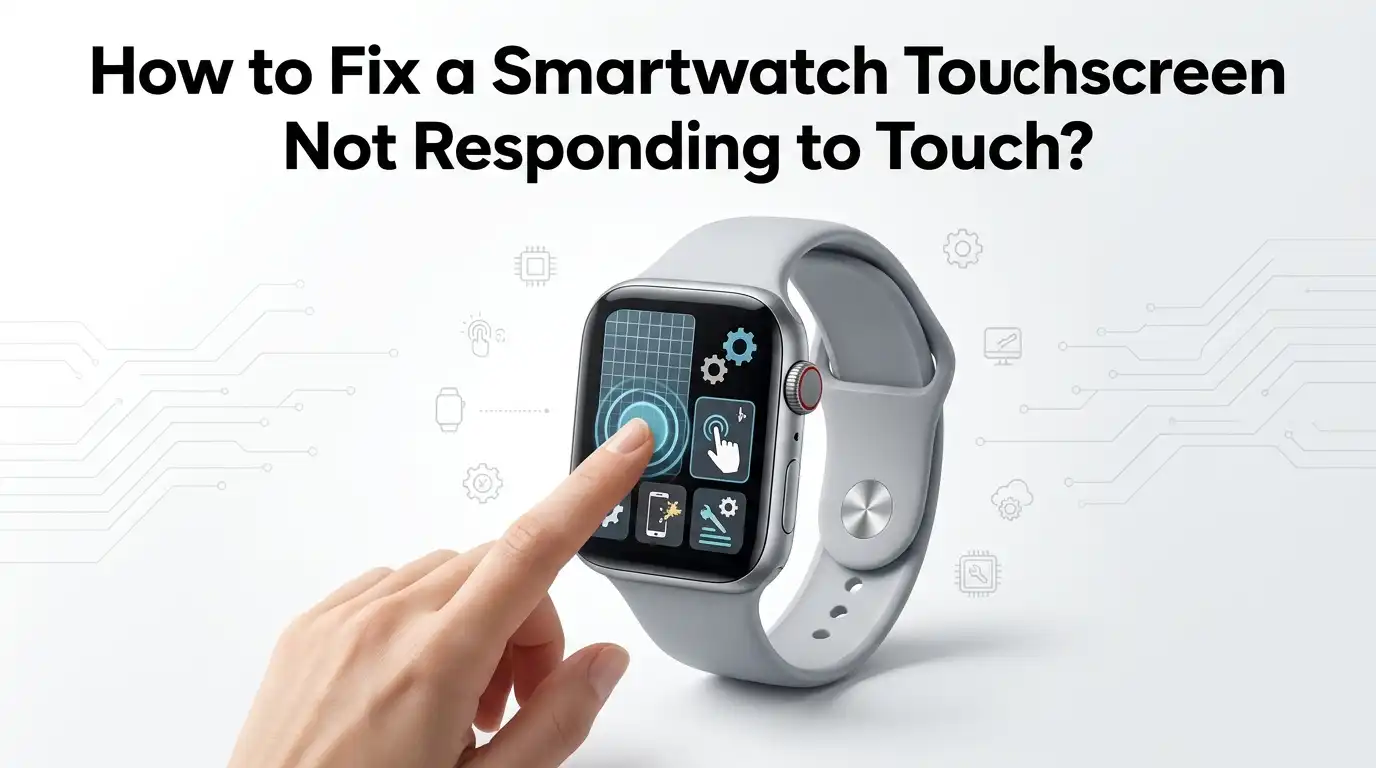
How to Fix a Smartwatch Touchscreen Not Responding to Touch?
A smartwatch that stops responding to touch can feel very annoying. You raise your wrist, tap the screen, and nothing happens.
The good news is that this problem often has a simple fix. In many cases, the watch is not broken. The screen may be wet, the software may be stuck, or a setting may be blocking touch input.
This guide gives you clear steps that you can try at home. You do not need special tools for most of them. I will keep the language simple and the steps practical.
In a Nutshell
- Start with the easy fixes first. A smartwatch touchscreen often stops working because of water, sweat, dirt, lotion, or a screen protector. Wipe the screen with a soft cloth, dry your fingers, and test the watch again. This quick step solves many touch problems without changing any settings or deleting any data.
- Check for lock features before you panic. Many smartwatches have water lock, screen lock, theater mode, or accidental touch protection. These settings can block taps and swipes on purpose. If your screen lights up but ignores touch, a lock feature may be the real cause.
- Restart before you reset. A normal restart clears small software bugs. A force restart helps when the screen is frozen. This is one of the best low risk fixes because it is fast and usually does not erase your data. Still, the exact button steps can change by brand and model, so follow the correct method for your watch.
- Look at the watch setup around the screen. A thick case, lifted screen protector, dried sweat, or charging issue can affect touch response. If the screen works only sometimes, physical interference is a strong clue. Removing accessories for a few minutes is an easy test that can save you a lot of time.
- Use bigger fixes only after smaller ones fail. Updating software, pairing the watch again, and resetting settings can help if the issue started after an update or after a sync problem. A factory reset is stronger, but it should come later because it takes more time and can wipe data if you do not back up first.
- Know when to stop home fixes. If the screen has cracks, swelling, ghost touches, black spots, or no response after a reset, the issue may be hardware related. At that point, repair help is the smart move. Pushing harder, heating the watch, or trying sharp tools can make the damage worse.
Why a smartwatch touchscreen stops responding
A smartwatch touchscreen can fail for a few common reasons. The first group is surface related. Water, sweat, soap, lotion, sunscreen, and dust can confuse the screen and block normal taps. This is very common after workouts, hand washing, or outdoor use.
The second group is software related. A recent update, low memory, a frozen app, or a sync error with your phone can make the screen lag or stop reacting. In this case, the watch may still turn on, vibrate, or show notifications, but touch does not work.
The third group is hardware related. A cracked screen, loose display connection, battery swelling, or internal damage after a drop can cause full or partial touch failure. Pros of finding the cause early: you save time and avoid random fixes. Cons: the symptoms can look similar, so you may need to test more than one method before the real cause becomes clear.
Start with a clean dry screen and dry fingers
Your first fix should be simple. Turn the watch off if you can. Then wipe the screen with a soft, lint free cloth. If there is visible dirt or dried sweat, lightly dampen the cloth with clean water and wipe again. Dry the screen fully before you test it.
Also check your fingers. Wet fingers, sweaty fingertips, and lotion can make touch input weak or random. If you just washed your hands, dried dishes, exercised, or used sanitizer, dry your hands well and try again. This small detail matters more than many people think.
Pros: This method is safe, fast, and free. It does not erase data and works well for daily buildup. Cons: It will not fix deeper software or hardware faults. Still, it is the right first step because dirt and moisture are common causes and easy to remove.
Check water lock screen lock and accidental touch settings
Many smartwatches can block touch on purpose. This is useful in water, during sleep, or while you move around a lot. If the display turns on but ignores your taps, look for a water drop icon, lock icon, or touch protection setting. Some watches need a long press on a crown or button to unlock the screen.
Water lock is a common reason for touch confusion. On some models, touch input is fully disabled while the lock is active. Other watches also have accidental touch protection, workout lock, or bedtime lock. These features are helpful, but they can look like a fault if you turn them on by mistake.
Pros: Unlocking the screen is quick and keeps all data safe. Cons: The unlock steps are different across brands, so users sometimes press the wrong button and think the watch is broken. If you are not sure, check the settings name on the watch or in the paired phone app.
Take the watch off the charger and check battery level
A very low battery can make a smartwatch act strangely. The screen may light up, then freeze, lag, or ignore touch. If your watch has almost no charge, place it on the original charger and let it sit for at least thirty minutes before testing again.
Also remove the watch from the charger once it has enough power. Some touch issues show up only while charging, especially if the charger is loose, dirty, or not the correct one. Clean the charging contacts gently and make sure the watch sits flat. If the watch feels very hot, let it cool down before you use it.
Pros: This method is easy and often fixes random freezes caused by low power. Cons: It takes a little patience, and it will not help if the screen has physical damage. Still, power checks are important because many watches behave badly before they fully shut down.
Restart the watch using the normal menu
A normal restart is one of the best fixes for a smartwatch touchscreen that has become slow or unresponsive. If the screen still allows a few taps, open the power menu and restart the watch. This closes stuck apps, refreshes the system, and clears small software errors.
After the watch starts again, wait a minute before testing the screen. Open only one app first. Then swipe between a few screens and check if the response feels normal. If the problem came from a temporary system glitch, the watch may work fine right away.
Pros: A normal restart is safe, quick, and usually causes no data loss. It is a great middle step after cleaning the screen. Cons: You need enough screen response to reach the power menu. If touch is fully dead, this method may not be possible. That is when a force restart becomes the better option.
Force restart the watch if the display stays frozen
If the screen is fully frozen, use a force restart. This is different from a normal restart because it does not rely on touch input. Most smartwatches use a button combination, such as holding the side button and crown or holding two buttons together for several seconds. The exact method depends on the brand.
Use a force restart only when the watch is stuck, frozen, or ignoring touch. Wait until the logo appears, then let the watch reboot fully. After startup, test basic actions like tapping, swiping, and opening settings. If touch works again, the issue was likely a software freeze.
Pros: This is a strong fix for frozen screens and startup loops. It often works when nothing else does. Cons: It can feel risky if you are unsure about the button steps, and it should not be repeated again and again. Important: if the watch restarts but still does not respond, move to the next checks instead of forcing it over and over.
Remove the screen protector case or thick residue
A bad screen protector can block touch sensitivity. This happens when the protector is too thick, badly aligned, cracked, bubbling, or lifting at the edges. Some rugged cases also sit too tightly on the screen and interfere with taps near the sides.
Take off the case and remove the protector if you use one. Then clean the screen again and test the watch with no accessories on it. If touch works better right away, you found the cause. This is common on small watch displays because even a small fit problem can affect touch accuracy.
Pros: This test is simple and gives a quick answer. It also costs nothing if you already have the watch in hand. Cons: You lose temporary scratch protection while testing, and some protectors are hard to remove cleanly. Still, accessory interference is easy to miss, so this step is worth trying before bigger software fixes.
Update the watch and phone software
If the touchscreen problem started after a bug, slow syncing, or odd behavior between the watch and phone, a software update may help. Check for updates on the watch and on the paired phone app. Install any available updates, keep both devices charged, and let the process finish fully.
After the update, restart both the phone and the watch. Then test touch input again. Open the watch face, settings, and one simple app. If the issue came from a software bug, the update may restore normal touch response or improve stability.
Pros: Updates can fix known bugs, improve stability, and solve issues that cleaning cannot touch. Cons: Updates take time and may be hard to start if the watch screen barely responds.
In a few cases, a new update can also expose a hidden issue instead of fixing it. Even so, keeping software current is one of the best long term habits for smartwatch health.
Unpair and pair the watch again
If your smartwatch still has touch issues, try unpairing it from your phone and pairing it again. This can fix sync errors, bad settings transfers, and account problems that affect how the watch behaves. Before you do this, back up anything important if your brand allows it.
Open the watch app on your phone, remove the watch from the account, and then pair it again as if it were new. Restore from backup if that option appears. Once the setup is done, test touch response before adding too many apps or watch faces.
Pros: Re pairing can clear communication bugs between the phone and the watch. It is useful if problems started after a phone change or app issue. Cons: Setup takes time, and some settings may need to be added again by hand. This is more work than a restart, but it is still easier than a full factory reset in many cases.
Reset settings and test the screen in a simple state
Some smartwatch problems come from a setting, gesture, accessibility option, or third party watch face that is causing conflict. If your device allows it, reset settings without erasing all data. You can also switch to a basic watch face and remove extra apps one by one.
Test the screen in a simple state. Turn off features you do not need for the moment, such as always on display, extra gestures, touch wake, or special workout locks. Then check whether the touchscreen becomes more stable. If it does, add things back slowly until you find the trigger.
Pros: This method helps you find the exact source of the problem. It is useful for users who like to customize their watch a lot. Cons: It takes patience, and the fix is not always instant. Still, testing in a clean simple setup can reveal whether the issue is a setting problem or a true system fault.
Use a factory reset only after backup
A factory reset is the strongest home fix for a smartwatch touchscreen that still does not respond after all other steps. It erases the watch and returns it to its default state. This can remove stubborn software faults, bad updates, and corrupted settings that smaller fixes cannot clear.
Before you reset, back up the watch if your brand supports backup. Charge the watch well and keep the phone nearby. After the reset, pair the watch again and test touch response before restoring everything. If the screen works in the fresh setup, the old software state was likely the cause.
Pros: A factory reset can solve deep software problems and gives you a clean start. Cons: It takes the most time, and you may lose settings or data if no backup is available. Use this method near the end of your checklist, not at the start.
When to get repair or replacement help
If the touchscreen still does not respond after cleaning, restarting, updating, re pairing, and resetting, the issue may be hardware related. Look for warning signs such as a cracked display, black spots, green lines, lifted screen edges, battery swelling, ghost touches, or total touch failure on only one part of the screen.
At this point, stop trying random home fixes. Do not press the screen hard. Do not use heat. Do not insert tools into holes or buttons. These actions can make the damage worse. If the watch is under warranty or protection coverage, contact the official support channel and describe every step you already tried.
Pros: Repair help can solve issues that software steps never will. It can also keep your device safe if the battery is damaged. Cons: Service may cost money or time if the warranty has ended. Still, knowing when to stop is a real solution because it protects both your watch and your safety.
FAQs
Can water alone make a smartwatch screen stop responding?
Yes, it can. Water, sweat, soap, and even tiny drops on the screen can confuse touch input. Some watches also activate a water lock mode that blocks touch on purpose. Dry the watch, dry your fingers, and check whether a lock feature is turned on.
Will a force restart delete my smartwatch data?
A force restart usually does not erase your data. It works like a hard reboot and helps when the watch is frozen. A factory reset is different. That option can erase apps, settings, and saved data, so back up first if possible.
Why does my smartwatch screen work with buttons but not with touch?
This often points to either a touchscreen issue or a lock setting. The watch system may still be alive, which is why buttons work. Check for water lock, screen lock, dirt, a bad screen protector, or a software freeze that needs a restart.
Should I replace the screen protector if touch gets weak?
Yes, that is a smart test. A thick, cracked, or badly fitted protector can reduce touch accuracy on a small smartwatch display. Remove it for a short test. If the screen responds better right away, replace it with a thinner and better fitted option.
How do I know if the problem is hardware and not software?
If the watch has cracks, flickering, black spots, lines, swelling, or dead touch areas that stay after a reset, hardware is the likely cause. Damage after a drop or water exposure is another clue. In that case, repair help is the safer next step.

Hi, I’m Lucy Jones, a dedicated watch enthusiast and reviewer. I spend my time hunting down, testing, and evaluating the most intriguing wristwatches on the market. My goal is to guide you through the overwhelming choices with honest, hands-on insights into every timepiece.