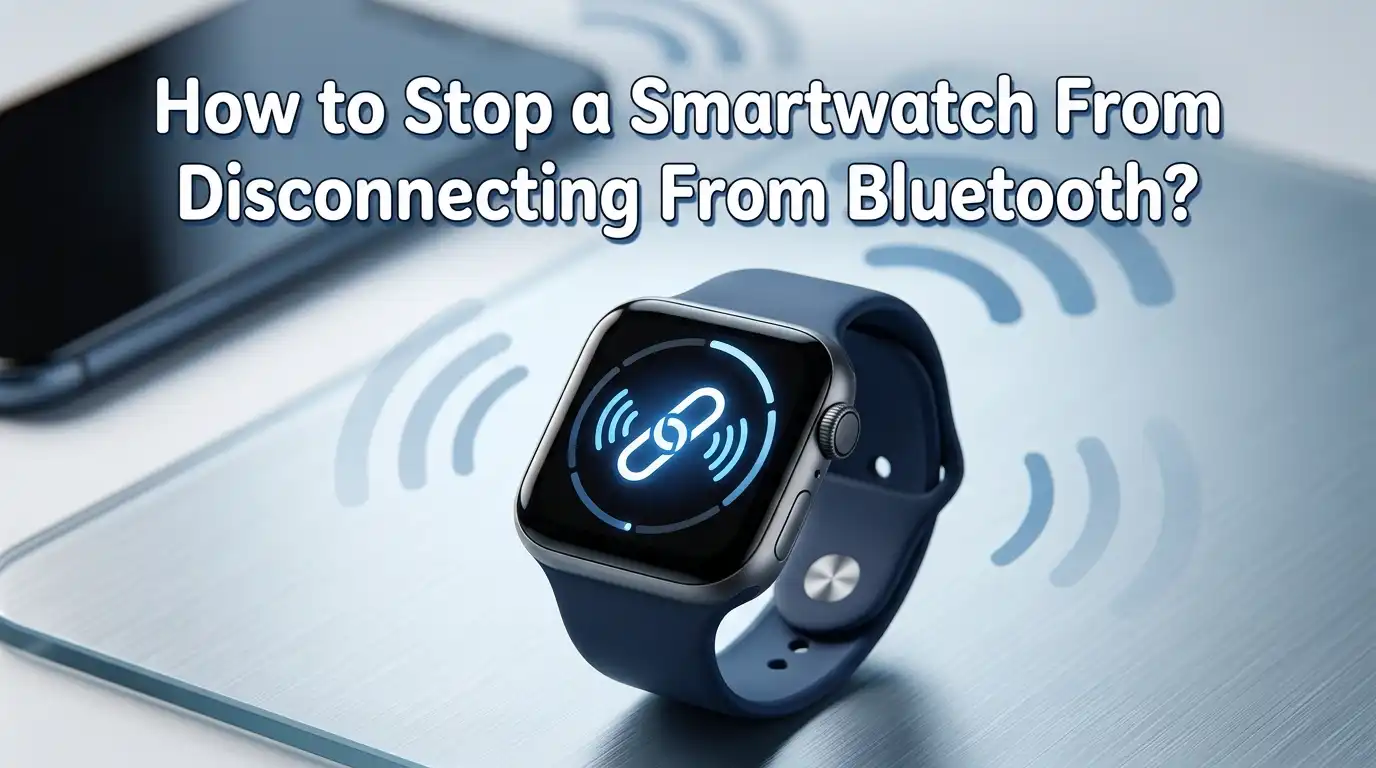
How to Stop a Smartwatch From Disconnecting From Bluetooth?
Your smartwatch should make life easier, not harder. But when it keeps dropping the Bluetooth connection every few minutes, it stops feeling smart at all.
You miss calls, lose notifications, and watch your fitness data fail to sync. That tiny disconnect icon on your wrist can ruin your whole day.
The good news is that most Bluetooth disconnection problems have simple fixes. You do not need a technician or a new device. You just need the right steps in the right order.
Key Takeaways
- Distance and obstacles matter more than you think. Keep your phone and watch within 30 feet of each other. Walls, metal, and water tanks weaken the Bluetooth signal fast.
- Battery saver modes silently kill Bluetooth. Both your phone and watch may shut down background connections to save power. Turn off aggressive battery optimization for your companion app.
- Outdated firmware causes random disconnects. Always update your watch software, phone OS, and the companion app. New patches often fix known Bluetooth bugs.
- Re-pairing fixes more than 60% of cases. Forget the device on your phone, restart both, and pair fresh. This clears corrupted connection data.
- Interference from other devices is real. Wi-Fi routers, microwaves, USB 3.0 ports, and other paired headphones can crowd the 2.4 GHz band. Move away from these sources when testing.
- A factory reset is your last clean fix. If nothing else works, reset the watch fully. It almost always restores a stable connection on the first try.
Why Your Smartwatch Keeps Disconnecting From Bluetooth
Smartwatches use Bluetooth Low Energy (BLE) to talk with your phone. This protocol saves battery but is also delicate. A weak signal, a tired battery, or one bad app can break the link.
Most disconnect issues fall into a few buckets. Software bugs, range problems, interference, and battery saving features cause the bulk of complaints. Hardware faults are rare but possible on older watches.
Knowing the cause helps you skip random fixes. For example, if your watch only disconnects in the kitchen, the microwave or Wi-Fi router is likely the issue. If it drops during the night, battery saver mode is the prime suspect. Match the symptom to the cause first, then apply the matching fix below.
Check the Distance Between Your Watch and Phone
Bluetooth has a real limit. Most smartwatches work well within 30 feet of clear line of sight. Walls, doors, and human bodies all cut that range in half or worse.
Try this quick test. Place your phone in your pocket and walk around your home. Watch when the disconnect icon appears on your wrist. If it shows up the moment you leave the room, distance is your main issue.
Keep your phone in the same room as your watch during work or sleep. If you charge your phone in the bedroom and walk to the kitchen, expect drops. This is normal Bluetooth behavior, not a fault.
Pros: No setup needed, works on every watch model.
Cons: Limits how freely you can move around your home or office.
Restart Both Your Smartwatch and Your Phone
A simple restart clears temporary memory glitches. Both devices store small bits of connection data that can become corrupted. Power cycling forces a fresh start for the Bluetooth stack.
Hold the side button on your watch until the power menu appears. Tap Restart or Power Off, then turn it back on. Do the same with your phone. Wait about 30 seconds before turning the phone back on so the Bluetooth chip resets fully.
After both devices boot, check the connection status. In many cases, the disconnect problem disappears for days or weeks after just one restart. Make this your first move whenever something feels off.
Pros: Free, fast, and safe. Fixes most short term glitches.
Cons: Only a temporary fix if a deeper bug exists in firmware.
Update Your Smartwatch Firmware and Phone Operating System
Outdated software is a leading cause of random disconnects. Manufacturers push firmware updates that patch Bluetooth stability bugs all the time. If you skip updates, you keep the bugs.
Open your watch companion app and look for a software update section. For Apple Watch, go to Settings, General, Software Update. For Wear OS, open the Settings app on the watch and tap System then Updates. Make sure your watch is charged above 50% before starting.
Also update your phone. Bluetooth bugs often live inside the phone OS, not the watch. A new Android or iOS version can quietly fix the issue without you doing anything else.
Pros: Solves bugs you cannot fix yourself. Adds new features too.
Cons: Updates can take 20 to 40 minutes and need a strong charge.
Forget the Device and Re-pair It Fresh
Sometimes the saved Bluetooth profile gets corrupted. Your phone keeps trying to use bad data, which causes constant drops. The fix is to delete the pairing and start over.
Open your phone Bluetooth settings. Find your watch in the list and tap the small gear or info icon. Choose Forget This Device. On the watch, also unpair from its own settings if possible.
Now restart both devices. Open the companion app and pair the watch like you did on day one. This step alone solves a huge share of long term disconnect problems because it wipes all the broken data.
Pros: Clears corrupted profiles and works on any brand.
Cons: You may need to redo watch face setups or app permissions.
Turn Off Battery Saver and Optimization for the Watch App
Phones love saving battery, sometimes too much. Android often puts the companion app to sleep in the background, which kills the Bluetooth link. iPhones do similar with Background App Refresh.
On Android, open Settings, then Apps. Find your watch app like Galaxy Wearable, Wear OS, or Mi Fitness. Tap Battery and choose Unrestricted. Also disable any “adaptive battery” feature for that app.
On iPhone, go to Settings, then your watch app, and turn on Background App Refresh. This tiny toggle keeps the Bluetooth connection alive while your phone is in your pocket or on the desk.
Pros: Solves disconnects that happen mostly when the phone is idle.
Cons: May slightly reduce phone battery life over a full day.
Remove Other Bluetooth Devices Causing Interference
Bluetooth uses the crowded 2.4 GHz frequency band. Wireless earbuds, speakers, keyboards, mice, and even some baby monitors share this space. Too many active devices cause the watch link to stutter.
Open your phone Bluetooth settings and look at the connected list. Disconnect any device you do not need right now. Pay close attention to wireless earbuds and car audio systems, because these use a lot of Bluetooth bandwidth.
Also keep your watch away from running microwaves, USB 3.0 hard drives, and Wi-Fi routers. These all push noise into the same band. Move at least six feet away and watch the connection improve right away.
Pros: Fixes location based disconnects fast.
Cons: You may need to manage which devices stay paired at once.
Disable Smart Lock and Trust Agents on Android
This fix is famous in the Wear OS community. Smart Lock uses Bluetooth to keep your phone unlocked when your watch is nearby. But it also sends extra signals that can break the main connection.
Open your phone Settings and search for Trust Agents. You may find it under Security or Lock Screen. Turn off Smart Lock or disable the trusted device feature for your watch.
After turning it off, restart your phone. Many users on Reddit reported their watch stayed connected for days after this single change. It is worth trying even if you like the Smart Lock feature.
Pros: Free fix that helps many Android users.
Cons: You lose the auto unlock convenience near your watch.
Reset Network Settings on Your Phone
If many Bluetooth devices act up at once, the phone network stack is probably the issue. Resetting network settings clears all Wi-Fi, mobile, and Bluetooth caches in one go.
On Android, go to Settings, System, Reset options, then Reset Wi-Fi, mobile, and Bluetooth. On iPhone, open Settings, General, Transfer or Reset iPhone, Reset, then Reset Network Settings.
This will not delete your photos or apps, but you will need to reconnect to Wi-Fi networks and re-pair Bluetooth devices. Plan for about 10 minutes of setup after the reset.
Pros: Strong fix when many wireless features misbehave.
Cons: You must reconnect every Wi-Fi and Bluetooth device manually.
Check the Companion App Permissions
Your watch app needs the right permissions to keep Bluetooth alive. If you skipped some during setup, the app may lose access randomly. Location permission is a must on Android, because Bluetooth scanning depends on it.
Open Settings, Apps, and find your watch app. Tap Permissions and allow Location, Nearby Devices, Notifications, and any other listed item. On iPhone, allow Bluetooth and Notifications under the app entry in Settings.
Set Location to “Allow all the time” if your watch supports phone finder or fall detection. These features need constant access to function. Without it, the app cannot rebuild a lost connection in the background.
Pros: Quick fix that takes under one minute.
Cons: Some users feel uneasy about always on location access.
Clear the Bluetooth Cache on Android
Android keeps a Bluetooth cache that grows over time. When this cache gets bloated or corrupted, pairings fail and connections drop without warning. Clearing it gives Bluetooth a clean slate.
Open Settings, Apps, then tap the three dot menu and choose Show System. Scroll to Bluetooth, tap Storage, then Clear Cache. Also clear cache for the Bluetooth Share app if you see one.
Restart the phone and reconnect your watch. This trick is hidden but powerful, especially on phones over a year old. Many tech forums list it as the top fix for stubborn Bluetooth drops.
Pros: Targets the exact root cause on Android phones.
Cons: Not available on iPhones, which handle cache differently.
Try the Developer Option AVRCP Tweak
This one is for advanced Android users. AVRCP is the Bluetooth audio remote control profile version. Some watches do not play well with newer AVRCP versions on certain phones.
Enable Developer Options by tapping Build Number seven times in About Phone. Open Developer Options and find Bluetooth AVRCP Version. Change it from 1.6 or 1.5 down to 1.4. Restart your phone.
This fix has saved many users from constant disconnects, especially on older Android versions paired with budget smartwatches. If it does not help, simply set it back to default and try the next step.
Pros: Targets a known compatibility issue between watch and phone.
Cons: Only works on Android. Audio control features may behave differently.
Factory Reset Your Smartwatch
If nothing else works, a factory reset is the strongest fix. It wipes all settings, accounts, and watch faces and brings the device back to day one. After the reset, pair fresh and the connection usually stays rock solid.
Open the watch settings and look for Reset or Erase All Content. Confirm and wait for the watch to reboot. The process takes about five minutes on most models.
Back up any health or fitness data before you reset, because some watches do not auto sync the latest entries. Once paired again, install only the apps you really need so the watch stays light.
Pros: Solves nearly every software based disconnect issue.
Cons: You lose all your custom settings and have to set up the watch again.
When to Suspect a Hardware Problem
If you tried every fix above and the watch still drops the link, hardware may be the cause. A weak Bluetooth chip or damaged antenna shows up as constant drops even right next to the phone.
Test the watch with a different phone, ideally a brand new one. If it still disconnects, the watch is the problem. If it works fine on the new phone, your old phone may have a worn out Bluetooth radio.
Water damage is another silent killer. Even watches rated for swimming can let in moisture over time, which corrodes the antenna. Contact the brand support team if your watch is under warranty for repair or replacement.
Pros: Confirms whether you should keep troubleshooting or replace the device.
Cons: Repair costs may match the price of a new mid range smartwatch.
Frequently Asked Questions
Why does my smartwatch disconnect every night?
Most night time drops happen because of battery saver modes. Your phone shuts off background apps to save power while you sleep. Disable battery optimization for the watch app and turn on Background App Refresh on iPhone. Also keep the phone within six feet of the bed.
Can a weak phone battery cause Bluetooth drops?
Yes. When your phone battery falls below 20%, most phones cut Bluetooth power to save energy. The signal weakens and your watch disconnects. Charge the phone above 30% and see if the issue stops. If it does, you found your reason.
Does a Bluetooth case or phone cover affect connection?
Thick metal or magnetic cases can block Bluetooth signals. Try removing the case and testing the connection. If it improves, switch to a thinner or non metal case. Magnetic wallet attachments are common offenders too.
Will a new phone fix my smartwatch disconnect issue?
Not always. If the watch is faulty, a new phone will not help. Test the watch on a friend’s phone first. If it stays connected there, the issue is with your old phone. If it still drops, the watch hardware is likely the cause.
How often should I restart my smartwatch?
A weekly restart keeps things smooth. Smartwatches run small operating systems that build up junk over time. A short reboot once a week clears memory and keeps the Bluetooth link healthy. Make it part of your weekend routine.
Can too many notifications break Bluetooth?
Heavy notification traffic can overload the link, especially on budget watches. Turn off alerts for apps you do not need on your wrist. Keeping only calls, messages, and calendar alerts reduces traffic and helps the connection stay stable.

Hi, I’m Lucy Jones, a dedicated watch enthusiast and reviewer. I spend my time hunting down, testing, and evaluating the most intriguing wristwatches on the market. My goal is to guide you through the overwhelming choices with honest, hands-on insights into every timepiece.