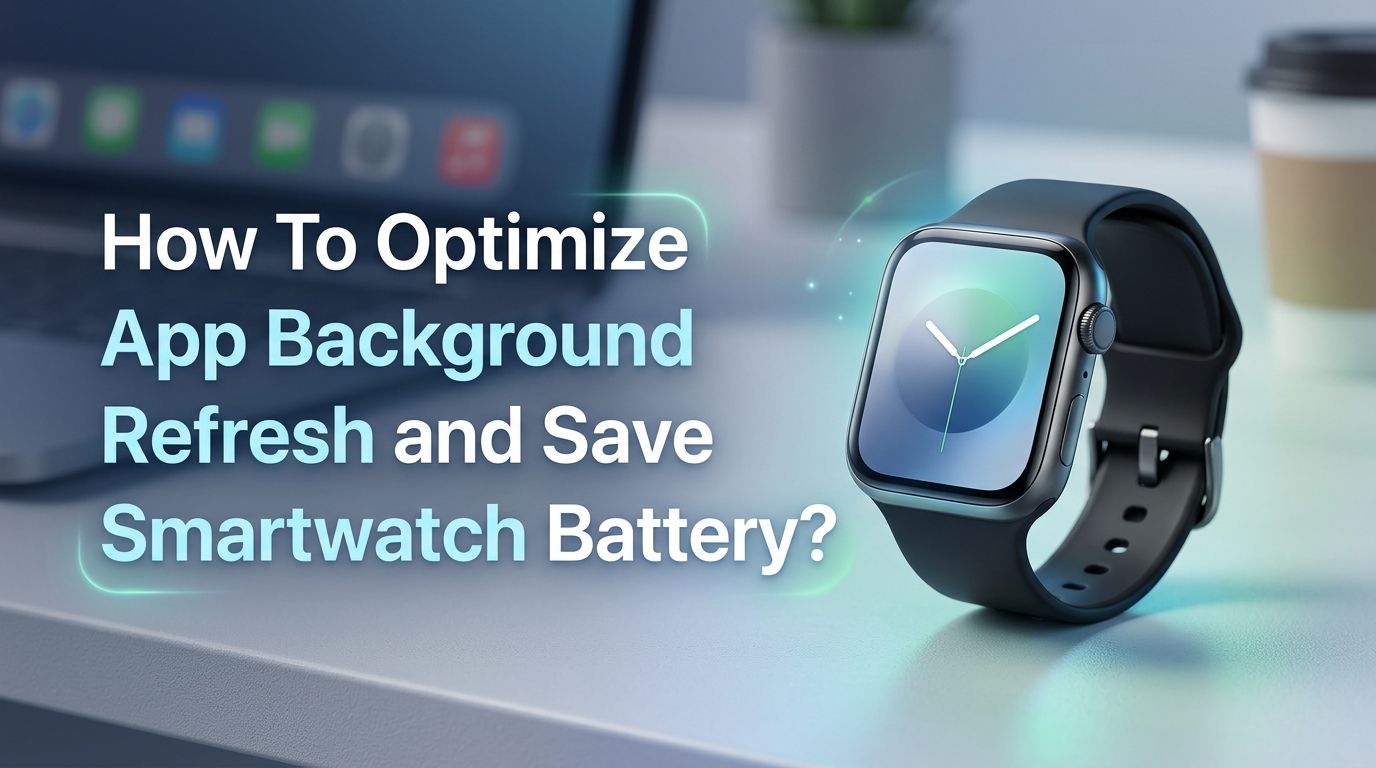
How To Optimize App Background Refresh and Save Smartwatch Battery?
Is your smartwatch barely making it through the day on a single charge? You are not alone. Millions of smartwatch users struggle with fast battery drain, and the hidden cause is often background app refresh.
This feature lets apps update their data even when you are not using them. It keeps your weather, email, fitness stats, and notifications current at all times. That sounds useful, but it comes at a serious cost to your battery life.
The good news is you can take control. By managing which apps refresh in the background and how often they do it, you can add hours of extra battery life to your smartwatch every single day.
In a Nutshell
- Background app refresh is one of the biggest battery drains on any smartwatch. Every app that refreshes data in the background uses processor power, wireless connections, and battery life. Disabling it for apps you rarely use can save significant power throughout the day.
- You do not have to turn off background refresh entirely. A selective approach works best. Keep it active for essential apps like health tracking and messages. Turn it off for apps like news readers, social media, and games that do not need constant updates on your wrist.
- Low Power Mode is your best friend during long days. Both Apple Watch and Samsung Galaxy Watch offer built in power saving modes. These modes limit background activity, reduce display brightness, and disable some wireless connections automatically.
- Checking your battery usage stats reveals the real culprits. Your smartwatch settings include a battery breakdown that shows exactly which apps consume the most power. Use this data to make smart decisions about which apps deserve background refresh privileges.
- Simple companion settings on your phone also matter. Your smartwatch syncs data through your phone. Adjusting notification settings, sync frequency, and app permissions on your paired phone reduces how often your watch wakes up to process incoming data.
- Regular maintenance keeps battery performance strong over time. Clearing app caches, updating software, and restarting your watch periodically prevent background processes from building up and draining your battery unnecessarily.
What Is Background App Refresh on a Smartwatch
Background app refresh is a feature that allows apps to update their content even when you are not actively using them. On a smartwatch, this means your weather app pulls new forecasts, your email app checks for messages, and your fitness app syncs data with your phone continuously throughout the day.
Each refresh cycle requires the processor to wake up, connect to your phone or Wi-Fi, download new data, and store it. This process uses battery power every single time it happens. If you have ten or fifteen apps all refreshing in the background on their own schedules, that adds up to a lot of wasted energy.
The feature exists to give you instant information the moment you raise your wrist. Without it, apps need a few seconds to load fresh data each time you open them. The tradeoff is between instant convenience and longer battery life, and most users benefit from finding a middle ground.
Why Background Refresh Drains Your Battery So Fast
Your smartwatch has a very small battery compared to your phone. Most smartwatches carry between 250mAh and 550mAh of battery capacity. Every background task takes a noticeable chunk out of that limited supply.
Each refresh cycle involves multiple power hungry actions. The processor activates, the Bluetooth or Wi-Fi radio transmits data, the screen buffer updates, and the storage writes new information. A single refresh might seem tiny, but dozens of apps repeating this process every few minutes creates a constant drain.
Samsung’s own support documentation notes that limiting background network usage and background activity are among the top recommended steps for improving battery runtime.
Users on Apple Watch have reported that background app refresh alone can account for over 30% of total battery consumption in a day. The math is clear: fewer background refreshes equal a longer lasting battery.
How to Check Which Apps Use the Most Battery
Before you start disabling features, find out which apps actually drain the most power. Data driven decisions produce much better results than guessing.
On Apple Watch, open the Watch app on your iPhone and go to General, then Usage. You can also open Settings directly on the watch and tap Battery. This screen shows you a breakdown of power consumption by app over the past day or so.
On Samsung Galaxy Watch, go to Settings, then Battery, then Battery Usage. You can also check this through the Galaxy Wearable app on your phone. Look for apps that show unexpectedly high usage despite minimal interaction from you.
On Wear OS devices, navigate to Settings, then Battery on the watch itself. The companion app on your phone may also display battery statistics. Write down the top five battery consuming apps and focus your optimization efforts there first.
How to Disable Background App Refresh on Apple Watch
Apple Watch gives you full control over background app refresh through a few simple steps. Open the Settings app on your Apple Watch. Tap General, then tap Background App Refresh.
You will see a master toggle at the top. Turning this off disables background refresh for every app on your watch. Below the master toggle, you will find individual toggles for each installed app. This lets you pick and choose exactly which apps can refresh.
The best approach is selective. Keep background refresh on for apps like Activity, Heart Rate, and Weather. Turn it off for apps like Music, News, Podcasts, and any third party apps you open less than once a day. Users who follow this selective method often report battery life improvements of 20 to 40% while still getting the data they need from important apps.
Pros: Precise control over each app, easy to adjust, significant battery savings.
Cons: Some apps may feel slower to load fresh data, requires manual review of each app.
How to Limit Background Activity on Samsung Galaxy Watch
Samsung Galaxy Watch models running Wear OS offer several ways to control background app behavior. Start by opening Settings on your watch and tapping Apps.
Select an individual app and tap Battery. You will see an option called Allow Background Activity. Toggle this off for apps that do not need to run behind the scenes. Focus on social media apps, games, and utilities you rarely check on your watch.
You can also use the Galaxy Wearable app on your phone. Navigate to Watch Settings, then Apps, then select any app to manage its background permissions. Samsung also provides an option to Limit Background Network Usage under the Battery settings, which restricts apps from using data connections while running in the background.
Pros: Multiple levels of control, accessible from both watch and phone, works across all Samsung watch apps.
Cons: Settings are spread across multiple menus, some Samsung system apps cannot be fully restricted.
How to Optimize Background Refresh on Wear OS Devices
For non Samsung Wear OS watches like Google Pixel Watch, the process is slightly different but equally effective. Open Settings on your watch and navigate to Apps and Notifications.
Tap on any app to see its permissions and battery settings. You can force stop apps that you suspect are draining battery in the background. You can also restrict background data by going to Connectivity, then Data Usage, and toggling off background data for specific apps.
Google’s official Wear OS support page recommends uninstalling apps you do not use as a direct way to improve battery life. Every installed app, even if unused, can register background services that consume resources. Review your app list every few weeks and remove anything that does not add daily value to your wrist.
Pros: Clean interface, supported by Google’s own optimization guidelines, effective results.
Cons: Fewer granular controls than Apple Watch, some features depend on watch manufacturer overlay.
Use Low Power Mode for Extended Battery Life
Every major smartwatch platform includes a power saving mode that dramatically reduces background activity. This is your best option for days when you need your watch to last longer than normal.
On Apple Watch, swipe up from the watch face, tap the battery percentage, and enable Low Power Mode. This feature reduces background refreshes, disables the always on display, limits heart rate monitoring, and turns off Wi-Fi. Apple states it can roughly double your battery life.
On Samsung Galaxy Watch, go to Settings, then Battery, and activate Power Saving Mode. This limits CPU speed, decreases brightness by 10%, turns off Wi-Fi, and restricts background network usage. Some Samsung users report getting an extra full day of use with this mode active.
Pros: One tap activation, dramatic battery improvement, still allows basic watch functions.
Cons: Reduced functionality, delayed notifications, limited health tracking accuracy.
Reduce Notification Syncing to Save Power
Every notification that arrives on your smartwatch triggers a background wake cycle. Your watch receives the data, processes it, activates the haptic motor, and lights up the display. Dozens of notifications per hour can drain your battery quickly.
Go through your notification settings and disable alerts for apps that do not need your immediate attention on your wrist. Social media likes, game updates, promotional emails, and news alerts are all good candidates for removal. Keep notifications active only for calls, messages, calendar events, and truly urgent apps.
On Apple Watch, manage this through the Watch app on your iPhone under Notifications. On Samsung Galaxy Watch, use the Galaxy Wearable app under Notifications. Cutting your notifications by 50% can noticeably improve battery life because each blocked notification is one less background process your watch must handle.
Adjust Sync Frequency Between Watch and Phone
Your smartwatch constantly syncs data with your paired phone. This sync process runs in the background and uses both Bluetooth and sometimes Wi-Fi to transfer information. Reducing how often this happens saves battery.
On Samsung Galaxy Watch, users have found that disabling the Frequent Syncing feature leads to major battery improvements. This setting forces the watch to sync more often than necessary, and turning it off lets the watch sync at normal intervals instead.
For all smartwatch platforms, you can reduce sync frequency by limiting the number of apps that push data between phone and watch. Review your companion app settings and disable sync for apps that do not need real time data on your wrist. Email apps, for example, can check every 30 minutes instead of every 5 minutes, saving hundreds of unnecessary background cycles per day.
Clear Cache and Restart Your Watch Regularly
Over time, cached data from apps builds up on your smartwatch. This cached data can cause background processes to run longer and harder than they should, which drains your battery faster.
On Samsung Galaxy Watch, you can clear the cache through the recovery menu. Power off your watch, then hold the Home and Back buttons together until the Samsung logo appears. Use the buttons to select Wipe Cache Partition and confirm. This removes temporary files without deleting your personal data.
For Apple Watch and Wear OS devices, a simple restart every week or two helps clear temporary processes and free up resources. Hold the side button, select Power Off, and then turn the watch back on after a few seconds. Users report that this simple habit prevents gradual battery degradation that happens when background services accumulate.
Choose Battery Friendly Watch Faces and Complications
Your watch face runs all the time, and each complication on it triggers background refreshes to stay current. A watch face with six complications forces six different apps to update data continuously.
Switch to a minimal watch face with two or three complications at most. Choose complications for essential data like time, date, and battery level. Avoid complications that pull live data from weather services, stock tickers, or activity rings, as these require frequent background updates.
Darker watch faces also save battery on OLED and AMOLED screens, which most modern smartwatches use. Black pixels on these displays use zero power, so a dark face with minimal complications gives you the best combination of style and efficiency.
Keep Your Smartwatch Software Updated
Software updates often include battery optimization improvements that reduce unnecessary background activity. Both Apple and Samsung regularly release updates that fix battery drain bugs and improve how apps manage background resources.
On Apple Watch, go to Settings, then General, then Software Update. On Samsung Galaxy Watch, check Settings, then About Watch, then Software Update. Always keep your watch on the latest available software version.
Some major updates have specifically addressed background process management. For example, Wear OS updates have improved how the system handles sleeping apps and background task scheduling. Missing these updates means missing out on free battery improvements that the developers have already built for you.
Create a Personal Battery Optimization Routine
The most effective battery strategy combines multiple small changes into a consistent routine. Start by auditing your battery usage once a week. Check which apps consumed the most power and adjust their background refresh settings accordingly.
Set a schedule to restart your watch every Sunday night. Review your installed apps monthly and remove any you have not used in the past two weeks. When you install a new app, immediately check its background refresh setting and disable it unless you have a specific reason to keep it on.
Keep Low Power Mode as a shortcut on your watch face for easy access during long days. This proactive approach ensures your battery stays optimized over time instead of slowly degrading as apps accumulate and background processes multiply. Small, consistent actions produce the biggest long term results.
Frequently Asked Questions
Does turning off background app refresh break any smartwatch features?
No, it does not break any features. Apps will still work normally when you open them. The only difference is that the data will take a few seconds to load fresh content instead of being instantly available. Essential features like incoming calls and basic notifications still function even with background refresh disabled. Health sensors continue to operate based on their own schedules, independent of the background app refresh setting.
How much battery life can I save by disabling background app refresh?
Results vary based on your watch model and how many apps you have installed. However, many users report savings between 20% and 40% of daily battery consumption. Some Apple Watch users have documented going from 30% drain in six hours to just 5 to 10% drain over the same period. The more apps you disable background refresh for, the greater the savings you will see.
Should I turn off background refresh for health and fitness apps?
It depends on your priorities. If you rely on continuous heart rate monitoring, sleep tracking, or workout detection, keep background refresh on for your primary health app. However, if you have multiple fitness apps installed, keep refresh active only for the one you use most and disable it for the rest. One active health app uses far less battery than three or four running simultaneously.
Is Low Power Mode the same as disabling background app refresh?
No, they are different features. Low Power Mode is a broad power saving setting that affects many parts of your watch, including display brightness, haptics, heart rate monitoring, and wireless connections. Disabling background app refresh only stops apps from updating data in the background. You can use both together for maximum battery savings, or use them separately depending on your needs.
How often should I restart my smartwatch for better battery life?
A restart once every one to two weeks is a good practice. This clears temporary background processes, frees up memory, and stops any misbehaving apps from continuously draining power. If you notice a sudden drop in battery performance, an immediate restart is a quick first step before investigating further settings changes.

Hi, I’m Lucy Jones, a dedicated watch enthusiast and reviewer. I spend my time hunting down, testing, and evaluating the most intriguing wristwatches on the market. My goal is to guide you through the overwhelming choices with honest, hands-on insights into every timepiece.