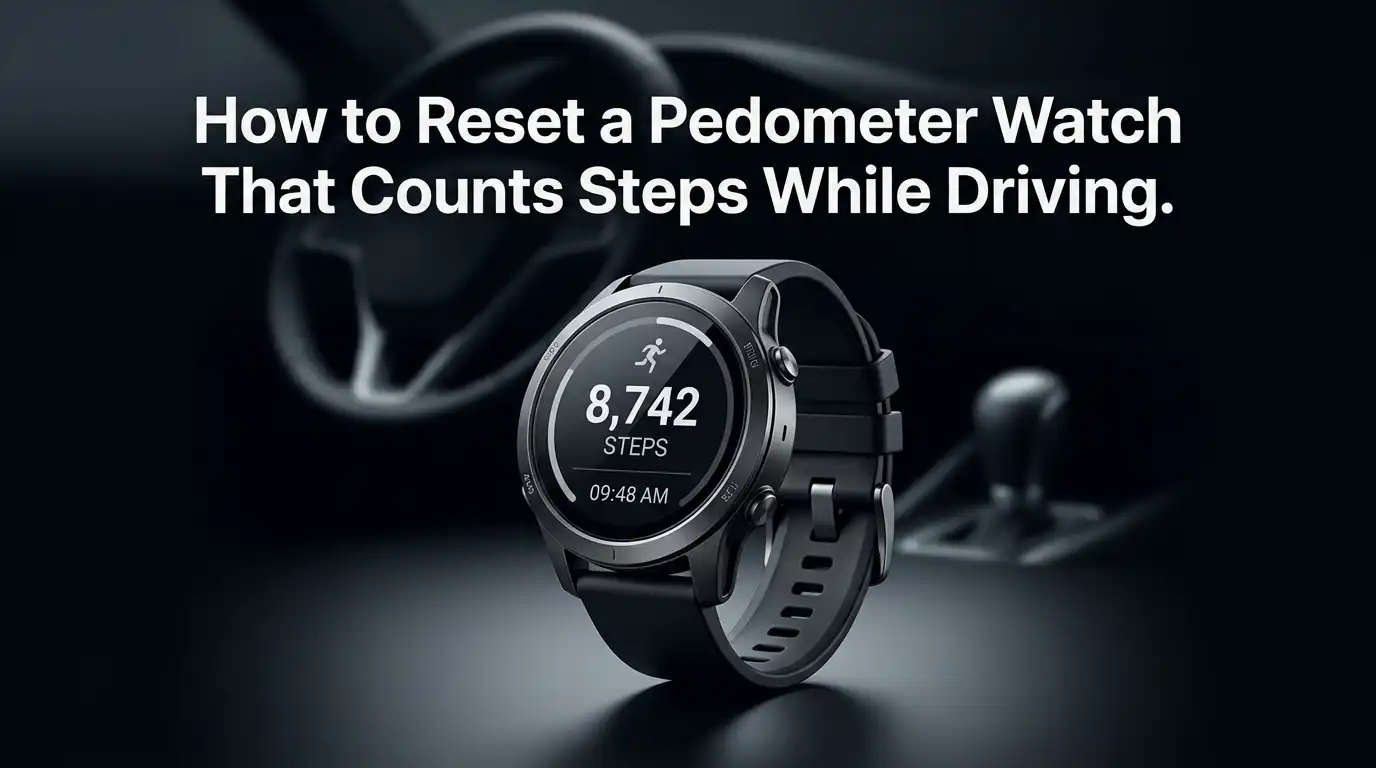
How to Reset a Pedometer Watch That Counts Steps While Driving?
A pedometer watch should help you track real movement. It should not reward you for sitting in traffic. Yet many people notice their watch adding steps during a drive, a bus ride, or even a rough road. That can feel frustrating, especially if you use your step count to measure daily progress.
The good news is that this problem usually has a clear fix. In many cases, your watch is reacting to wrist motion, road vibration, loose fit, or old calibration data.
A simple reset, a setting change, or a better fit can solve it. In this guide, you will learn practical ways to reset your pedometer watch, stop false step counts, and make your daily totals more accurate.
Key Takeaways
- False steps during driving are common. Most pedometer watches use motion sensors to detect repeated movement. A bumpy road, steering motion, or a loose band can look like walking to the sensor. That means the problem is often normal sensor behavior, not always a broken watch.
- Start with the easiest fix first. A soft reset, a tighter fit, and the correct wrist setting often solve the issue fast. You do not need a factory reset right away. Many people can improve accuracy in a few minutes without wiping the watch.
- Your wearing style matters a lot. If the watch sits too loose, swings on your wrist, or sits on the wrist that moves more while driving, it can count extra steps. A secure fit and the right wrist setting can reduce false movement.
- Your profile data affects step accuracy. Height, stride, age, and motion calibration help many watches decide what a real step looks like. If those details are wrong, the watch may guess badly. A quick review inside the app can improve tracking.
- There is a right time for a full reset. Use a factory reset only after you try the lighter fixes. It can clear bad data or glitchy settings, but it also removes saved preferences. That makes it useful, but not your first move.
- Long term habits keep the problem from coming back. Pause tracking during long drives, update the software, recalibrate after major changes, and correct false data after trips. Small habits protect your step count better than one big fix.
Why Your Watch Counts Steps While You Drive
A pedometer watch usually tracks steps with an accelerometer. That sensor looks for repeated motion patterns that match walking. During a drive, your wrist can still move in short, repeated bursts. Road vibration can also create tiny shocks that look like steps.
That is why the problem often appears more on rough roads, during stop and go traffic, or while holding the wheel tightly. A loose watch can make this worse because the watch body shifts more than your arm. The watch reads motion, not intent. It does not truly know if you are walking or just sitting in a moving car.
The main benefit of knowing this cause is simple. You stop blaming yourself and start fixing the right thing.
Pros: Easy to understand, helps you choose the right fix.
Cons: Some false steps are hard to remove fully on every device.
First Quick Reset to Try Before Deeper Fixes
Start with a simple reset. On most pedometer watches, this means restarting the watch or clearing the current daily step screen if your model allows it. A quick reset can help when the watch gets stuck in a bad motion reading pattern or sync issue.
First, sync the watch with its app so you do not lose important data. Next, restart the watch from the settings menu or by holding the side button until it powers off and back on. If your watch has a daily step reset option, use that only if you want to clear the wrong count for the day.
This is the best first move because it is fast and low risk. It often solves temporary glitches without changing your profile or watch setup.
Pros: Fast, easy, low risk, often works for short term bugs.
Cons: It may not fix repeated false steps caused by fit, settings, or calibration.
Check the Fit and Wrist Placement
A loose watch can count more false steps than a secure one. If the watch slides, twists, or bounces while you drive, the sensor may detect extra motion. Make sure the strap feels snug but comfortable. The watch should sit flat on your wrist and stay in place when you move your hand.
Wrist placement also matters. If you wear the watch on the hand you use most while driving, you may create more false motion. Try wearing it on the other wrist for a few days and compare results. A small switch can make a big difference.
This method works well because it solves the physical cause of the problem. It does not depend on software.
Pros: Free, simple, often improves accuracy right away.
Cons: It may feel odd at first if you change wrists or tighten the band.
Change the Wrist Setting in Your App
Many watch apps ask whether you wear the device on your dominant wrist or your non dominant wrist. This setting changes step sensitivity. If the app is set wrong, the watch may react too strongly to daily hand movement and count more false steps.
Open the watch app on your phone and check the wrist setting. If you wear the watch on your writing hand, mark it as the dominant wrist. If you wear it on the other hand, choose non dominant. This step matters more than many users think. Some brands lower step sensitivity on the dominant side to reduce overcounting.
Try the correct setting for a few days before making another change. Give the watch time to learn your pattern.
Pros: Easy fix, no data loss, often reduces false counts.
Cons: Results may take a little time to show clearly.
Review Your Height Stride and Profile Data
Your watch uses personal data to estimate what your movement means. If your height, age, sex, weight, or stride details are wrong, your watch may judge step patterns badly. That can lead to poor totals during real walking and false counts during driving.
Open the app and review all health and activity details. Check your height first because many devices use it to estimate stride length. If your watch lets you adjust walking stride, update that too. A person with short steps and a person with long steps create different motion patterns, so this detail matters.
Correct profile data gives the watch a better base for decision making. It will not stop every false step, but it can improve overall accuracy.
Pros: Helps both step count and distance estimates.
Cons: It takes a few minutes, and some watches hide these settings deep in the app.
Recalibrate the Motion Sensor
If your watch still counts steps while driving, recalibration can help. Calibration teaches the watch what your normal walking pattern looks like. Some watches do this during outdoor walks or runs. Others improve over time after steady use with correct settings.
A simple way to recalibrate is to take a steady outdoor walk with the watch fitted well and synced to the phone or GPS if your model supports that. Walk at your usual pace for a clear session. Keep your arm motion natural. This helps the watch build better stride and motion data.
Think of calibration as giving your watch a fresh lesson. It is very useful after a reset, after a software update, or after switching wrists.
Pros: Improves real walking accuracy, useful after changes.
Cons: Takes time, and results may not be instant on every model.
Pause Tracking During Long Drives
If you already know a long drive will create false steps, stop the problem before it starts. Some watches let you pause activity tracking, disable step counting for a short time, or switch to a mode that limits movement tracking. If your watch has a driving mode, use it.
If there is no built in pause option, remove the watch during the drive or place it somewhere stable if that is safe and practical. Another option is to wear it on the wrist that moves less during the trip. Prevention is often easier than correction.
This method is helpful for people who drive every day for work. It saves time later because you do not have to fix bad totals after each trip.
Pros: Stops false steps before they happen, very practical for daily drivers.
Cons: You may forget to turn tracking back on after the drive.
Delete or Correct False Steps After a Trip
Sometimes the drive is over and the false steps are already there. In that case, check whether your watch app lets you edit or remove activity data. Some apps let you log a driving session manually, which can offset or replace the motion counted during that time.
If your app allows it, enter the driving period and mark it as a vehicle trip or inactive time. On some devices, you may need to delete the wrong session or adjust daily logs by hand. This is not the most fun fix, but it can protect your records if you care about clean step history.
This method is useful for data accuracy, especially if you track goals closely.
Pros: Keeps your history cleaner, helpful for serious tracking.
Cons: Manual edits can be slow, and some brands give very limited editing tools.
Restart and Update the Watch Software
Old software can make motion tracking worse. A bug in the watch system or phone app can also affect how steps are counted, synced, or corrected. That is why a restart plus an update is one of the smartest fixes after the basic checks.
First, restart both the watch and the phone app. Then look for watch firmware updates and app updates. Install any pending update, then wear the watch for a few normal days and compare the results. Software fixes often improve motion filtering in the background.
This method is easy to overlook because the watch still seems to work. Yet a working watch can still run on poor motion logic if the software is old.
Pros: Can improve accuracy without changing your routine.
Cons: Updates can take time, and a new update may need fresh calibration.
Use a Full Factory Reset Only When Needed
A factory reset is the big fix. It clears stored settings, custom preferences, paired data, and in some cases local activity history on the watch. Use it only after you try restart, fit changes, wrist settings, profile review, calibration, and updates.
Before you reset, sync everything to the phone app. Then unpair the watch if the brand suggests it, run the factory reset from settings, and set the watch up again from the start. Enter the correct profile data, pick the right wrist, update the software, and recalibrate with a normal walk.
A factory reset can solve stubborn software issues that smaller fixes cannot touch. But it is still a last resort, not the first button to press.
Pros: Strong fix for deep glitches and bad setup data.
Cons: Time consuming, clears settings, may require full setup again.
How to Pick the Best Fix for Your Case
The best method depends on the cause. If your false steps started after a recent update, try restart, update checks, and recalibration first. If the problem happens only while driving, focus on band fit, wrist setting, and pausing tracking during trips. If the watch overcounts all day, review profile data and calibration.
A good rule is to move from light fixes to strong fixes. Start with the band, wrist, app settings, and restart. Then try calibration and software updates. Save the factory reset for the end. This order saves time and avoids needless data loss.
If you want the fastest path, ask yourself one question. Did something change recently? If yes, fix that change first.
Pros: Saves effort, gives a clear order to follow.
Cons: It takes patience because you may need to test one fix at a time.
When to Contact Support or Replace the Watch
If your watch still adds large step counts during every drive after all fixes, the sensor may be faulty. A damaged accelerometer, bad firmware build, or worn strap fit system can all cause repeat issues. This is more likely if the watch also miscounts steps while you sit, type, or sleep.
Contact brand support if the problem is severe and repeatable. Tell them what you already tried. Include details like road type, how many false steps appear, which wrist you use, and whether the issue started after an update. That saves time and helps them judge if the watch needs service.
Sometimes the smartest solution is support, not more guessing.
Pros: Gets expert help, may lead to repair or replacement.
Cons: It can take time, and older devices may not qualify for service.
FAQs
Can I reset only the step count and not the whole watch?
Yes, on some models you can clear the daily step count without doing a full factory reset. This depends on the brand and watch menu. If that option exists, it is useful for one bad day after a long drive. Still, remember that clearing the count does not fix the cause. It removes the symptom, not the problem. If false steps keep coming back, check fit, wrist settings, profile details, and calibration next.
Why does my watch count steps more on rough roads?
Rough roads create vibration. Your watch sensor reads motion, and those repeated bumps can look like walking. If your wrist is moving while you steer, the effect gets stronger. A loose strap can add even more motion. That is why the same watch may act fine on smooth roads and badly on rough ones. Tightening the band and pausing tracking during long drives often helps a lot.
Will changing wrists really reduce false steps?
Yes, it can. If you wear the watch on the hand that moves more while driving, cooking, or working, the watch may count more false steps. Moving the watch to the other wrist can reduce that motion. Make sure you also change the wrist setting inside the app. The physical switch and the app setting should match or the watch may still read movement the wrong way.
How long should I test a fix before trying another one?
Give each fix at least two or three normal days if you can. One short drive is not always enough to judge a result. A watch may need a little time after a restart, update, or calibration to settle into normal tracking. Test in similar conditions so your comparison is fair. Slow testing feels boring, but it helps you find the real cause instead of changing five things at once.

Hi, I’m Lucy Jones, a dedicated watch enthusiast and reviewer. I spend my time hunting down, testing, and evaluating the most intriguing wristwatches on the market. My goal is to guide you through the overwhelming choices with honest, hands-on insights into every timepiece.