How to Fix Apple Pay Not Working on Apple Watch?
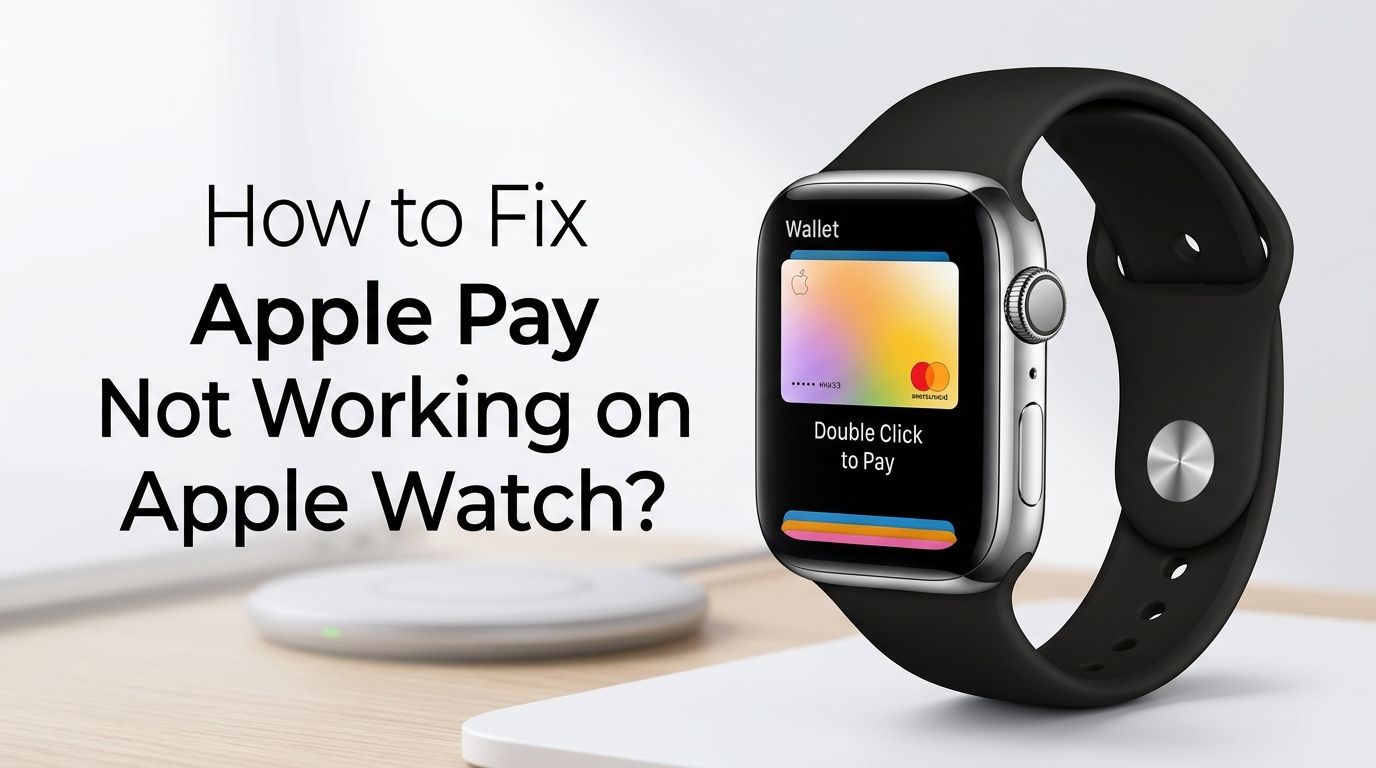
You double click the side button on your Apple Watch, hold it near the payment terminal, and nothing happens. The cashier stares. The line behind you grows. Apple Pay on your Apple Watch just stopped working, and you have no idea why.
This is a frustrating problem that thousands of Apple Watch users face every day. The good news? Most causes are simple, and the fixes are even simpler. Whether your card gets declined, the terminal does not respond, or you cannot even set up Apple Pay on your watch, this guide covers every possible solution.
We researched Apple support forums, user reports, and official Apple documentation to bring you practical, tested fixes that actually work. By the time you finish reading, you will know exactly what went wrong and how to get Apple Pay running smoothly on your Apple Watch again.
In a Nutshell
- A passcode and wrist detection must be enabled. Apple Pay requires both of these security features to be active on your Apple Watch. Without them, Apple Pay will not function or even let you add cards.
- Restarting both your Apple Watch and iPhone often solves the problem. Many Apple Pay glitches come from temporary software bugs that a simple restart clears up in seconds.
- Removing and re-adding your payment card is one of the most effective fixes. Multiple users on Apple forums confirm that deleting the card from the Watch Wallet app and adding it again resolves most payment failures.
- Software updates can break Apple Pay temporarily. After a watchOS or iOS update, Apple Pay may stop working. Verifying your cards in the Wallet settings usually fixes this issue.
- Unpairing and re-pairing your Apple Watch is the nuclear option that works. If nothing else fixes the problem, unpairing your watch from your iPhone and setting it up again has a very high success rate.
- Hardware damage to the NFC antenna is rare but possible. If your watch had a screen replacement or physical damage, the NFC chip may need professional repair.
How to Check if Your Apple Watch Supports Apple Pay
Not every Apple Watch has the same Apple Pay capabilities, so start here. All Apple Watch models from Series 1 onward support Apple Pay. The original Apple Watch (Series 0) also supports it but with limited features.
To confirm support, open the Watch app on your iPhone and tap Wallet & Apple Pay. If this option exists, your watch supports Apple Pay. You should also confirm your region supports Apple Pay, as it is not available in every country.
Your bank or card issuer must also support Apple Pay on Apple Watch. Check your bank’s website or call their support line to verify. Some smaller banks and credit unions have limited Apple Pay support.
Pros: Quick check that rules out basic compatibility issues.
Cons: Does not fix the problem if your watch already had Apple Pay working before.
How to Enable Passcode and Wrist Detection for Apple Pay
Apple Pay will not work without a passcode enabled on your Apple Watch. This is a security requirement, not an optional setting. Many users accidentally turn off the passcode and then wonder why Apple Pay fails.
Open Settings on your Apple Watch. Tap Passcode and make sure it is turned on. If it was off, set a new passcode now. While you are in the Passcode settings, check that Wrist Detection is also enabled.
Wrist Detection keeps your watch unlocked while you wear it. Without Wrist Detection, you must enter your passcode every single time you try to pay. If the watch thinks it is off your wrist, Apple Pay will not activate at all.
Pros: This fix takes less than 30 seconds and solves the problem for many users.
Cons: If your watch has a loose fit, Wrist Detection may trigger false “off wrist” readings.
How to Restart Your Apple Watch and iPhone to Fix Apple Pay
A simple restart fixes more Apple Pay issues than most people expect. Temporary software glitches, frozen processes, and background errors all clear up with a reboot.
To restart your Apple Watch, press and hold the side button until the power off slider appears. Drag the slider, wait for the watch to shut down, then press and hold the side button again to turn it back on.
Restart your iPhone at the same time. Press and hold the side button and either volume button. Slide to power off, wait 30 seconds, and turn it back on. Once both devices restart, try Apple Pay again.
Pros: This is the easiest and fastest solution with zero risk.
Cons: The fix may be temporary if a deeper software issue exists.
How to Remove and Re-Add Your Payment Card on Apple Watch
This method has one of the highest success rates based on Apple community forum reports. Removing and re-adding your card forces the system to refresh its connection with your bank.
Open the Wallet app on your Apple Watch. Tap the card that is not working. Scroll down and tap Remove. Confirm the removal. Now go to the Watch app on your iPhone, tap Wallet & Apple Pay, and tap Add Card. Follow the prompts to add your card back.
After adding the card, your bank may require verification. This could be a text message code, a phone call, or an email confirmation. Complete the verification before trying to pay again.
Pros: Directly addresses card authorization issues and has a high fix rate.
Cons: You will need your card details handy, and bank verification can take a few minutes.
How to Verify Your Cards After a Software Update
Software updates are one of the most common triggers for Apple Pay failures on Apple Watch. After a watchOS or iOS update, your payment cards may need re-verification.
Open the Watch app on your iPhone. Tap Wallet & Apple Pay and look at your cards. If any card shows a message like “Card Not Verified” or displays an alert icon, tap it and follow the verification steps.
Some users report that after updating to newer versions of watchOS, all their cards show as unverified. This is normal. Simply verify each card one by one. Contact your bank if the verification process fails repeatedly.
Pros: Targets the exact issue caused by software updates.
Cons: Multiple cards mean multiple verification steps, which can take time.
How to Force Restart Your Apple Watch When It Is Frozen
Sometimes the Apple Watch screen freezes or becomes unresponsive during an Apple Pay transaction. A normal restart will not work if the screen is completely frozen. You need a force restart instead.
Press and hold both the side button and the Digital Crown at the same time. Keep holding them for at least 10 seconds. Release both buttons when you see the Apple logo appear on the screen.
A force restart does not erase any data. It simply forces the watch to shut down and reboot. After the watch restarts, test Apple Pay again by double clicking the side button near a payment terminal.
Pros: Solves frozen screen and unresponsive watch issues quickly.
Cons: Does not address deeper software or card configuration problems.
How to Check Your Network Connection for Apple Pay Issues
Apple Pay on Apple Watch does need a connection for certain functions. The initial card setup and verification require an internet connection. However, actual in-store payments use NFC and do not need Wi-Fi or cellular.
If you cannot add a card or verify it, make sure your iPhone has a strong Wi-Fi or cellular connection. Your Apple Watch should be connected to your iPhone via Bluetooth or connected to Wi-Fi directly.
Check the Control Center on your Apple Watch by swiping up from the watch face. Look for the green phone icon, which means your watch is connected to your iPhone. A blue Wi-Fi icon means it has a direct Wi-Fi connection.
Pros: Easy to check and fixes setup or verification failures.
Cons: Does not apply to in-store NFC payment failures.
How to Unpair and Re-Pair Your Apple Watch to Fix Apple Pay
This is the most thorough fix and should be your go-to option if nothing else works. Unpairing wipes the watch and creates a fresh connection with your iPhone. Many users on Apple support forums confirm this method fixed their Apple Pay problems.
Open the Watch app on your iPhone. Tap My Watch, then tap the “i” icon next to your watch name. Tap Unpair Apple Watch and confirm. Keep your watch and iPhone close together during this process.
Your iPhone will create a backup of your watch before unpairing. After the unpair finishes, set up the watch as new or restore from backup. Then go to Wallet & Apple Pay and add your cards again. This process takes about 15 to 20 minutes total.
Pros: Highest success rate for persistent Apple Pay issues.
Cons: Time-consuming, and you must re-add all your cards and reconfigure watch settings.
How to Update watchOS and iOS to Fix Apple Pay Bugs
Running outdated software can cause Apple Pay to malfunction. Apple regularly releases updates that fix payment-related bugs and security issues.
On your iPhone, go to Settings, then General, then Software Update. Install any available iOS update. For your Apple Watch, open the Watch app on your iPhone, tap General, then Software Update, and install any pending watchOS update.
Make sure your Apple Watch has at least 50% battery and is connected to its charger during the update. Also keep the watch close to your iPhone throughout the update process. After both devices update, test Apple Pay again.
Pros: Fixes known bugs that Apple has already patched.
Cons: Updates can sometimes introduce new issues, though this is rare.
How to Contact Your Bank if Apple Pay Still Does Not Work
Sometimes the problem is not with your Apple Watch at all. Your bank may have blocked or flagged your card for Apple Pay transactions. This happens more often than you might think.
Call the number on the back of your payment card. Ask the representative to verify that your card is enabled for Apple Pay and mobile payments. Some banks require you to opt in to mobile wallet services separately.
Also ask if there are any fraud alerts or holds on your account. A sudden change in payment method (like switching from phone to watch) can trigger security flags at some banks. Clearing these flags on the bank’s end often resolves the issue instantly.
Pros: Addresses the root cause when the problem is on the bank’s side.
Cons: May require waiting on hold and speaking with multiple representatives.
How to Check for NFC Hardware Problems on Your Apple Watch
If none of the software fixes work, your Apple Watch may have a hardware issue with its NFC antenna. This is especially common after screen repairs or physical damage to the watch.
The NFC antenna in an Apple Watch sits near the display. Third-party screen replacements can damage or disconnect this antenna. If you recently had your screen repaired and Apple Pay stopped working, this is likely the cause.
Visit an Apple Store or an Apple Authorized Service Provider and ask them to run a diagnostic test. If the NFC hardware is damaged, repair or replacement is the only option. Apple’s warranty or AppleCare+ may cover this depending on your coverage.
Pros: Identifies the problem when all software fixes fail.
Cons: Hardware repairs can be expensive if your warranty has expired.
How to Reset Your Apple Watch to Factory Settings as a Last Resort
If absolutely nothing works, a full factory reset erases everything on your watch and gives you a completely clean start. This should be your final option after trying every other fix.
On your Apple Watch, go to Settings, then General, then Erase All Content and Settings. Enter your passcode if prompted and confirm the erase. The watch will take a few minutes to wipe completely.
After the reset, pair the watch with your iPhone again as if it were brand new. Set up Apple Pay from scratch by adding your cards one at a time. This eliminates any corrupted data or settings that may have caused the issue.
Pros: Eliminates every possible software-related cause.
Cons: You lose all data, apps, and settings on the watch and must set everything up again.
Frequently Asked Questions
Why does Apple Pay work on my iPhone but not my Apple Watch?
Your Apple Watch has a separate Wallet from your iPhone. Cards added to your iPhone are not automatically on your watch. Open the Watch app on your iPhone, go to Wallet & Apple Pay, and add your cards to the watch specifically. Also make sure your watch passcode and wrist detection are both turned on.
Can I use Apple Pay on Apple Watch without my iPhone nearby?
Yes, you can. Once your cards are set up and verified on the Apple Watch, in-store NFC payments work without your iPhone present. The watch stores payment tokens locally. However, you need your iPhone or a Wi-Fi connection for the initial card setup.
Why does my Apple Watch vibrate but Apple Pay does not complete the payment?
This usually means the watch is sending the NFC signal, but the payment terminal is not accepting it. Try holding your watch closer to the terminal’s reader. Also make sure you double click the side button before holding the watch near the reader. If it still fails, the terminal itself may not support contactless payments.
Do I need to unpair my Apple Watch every time Apple Pay stops working?
No. Unpairing is a last resort. Start with simpler fixes like restarting both devices, removing and re-adding your card, and checking your passcode settings. Most users fix the problem long before they need to unpair.
Will resetting my Apple Watch delete my Apple Pay cards?
Yes. A factory reset removes all cards from your Apple Watch Wallet. Your cards on your iPhone Wallet remain untouched. After resetting and re-pairing, you will need to add your payment cards to the watch again and complete the bank verification process.

Hi, I’m Lucy Jones, a dedicated watch enthusiast and reviewer. I spend my time hunting down, testing, and evaluating the most intriguing wristwatches on the market. My goal is to guide you through the overwhelming choices with honest, hands-on insights into every timepiece.