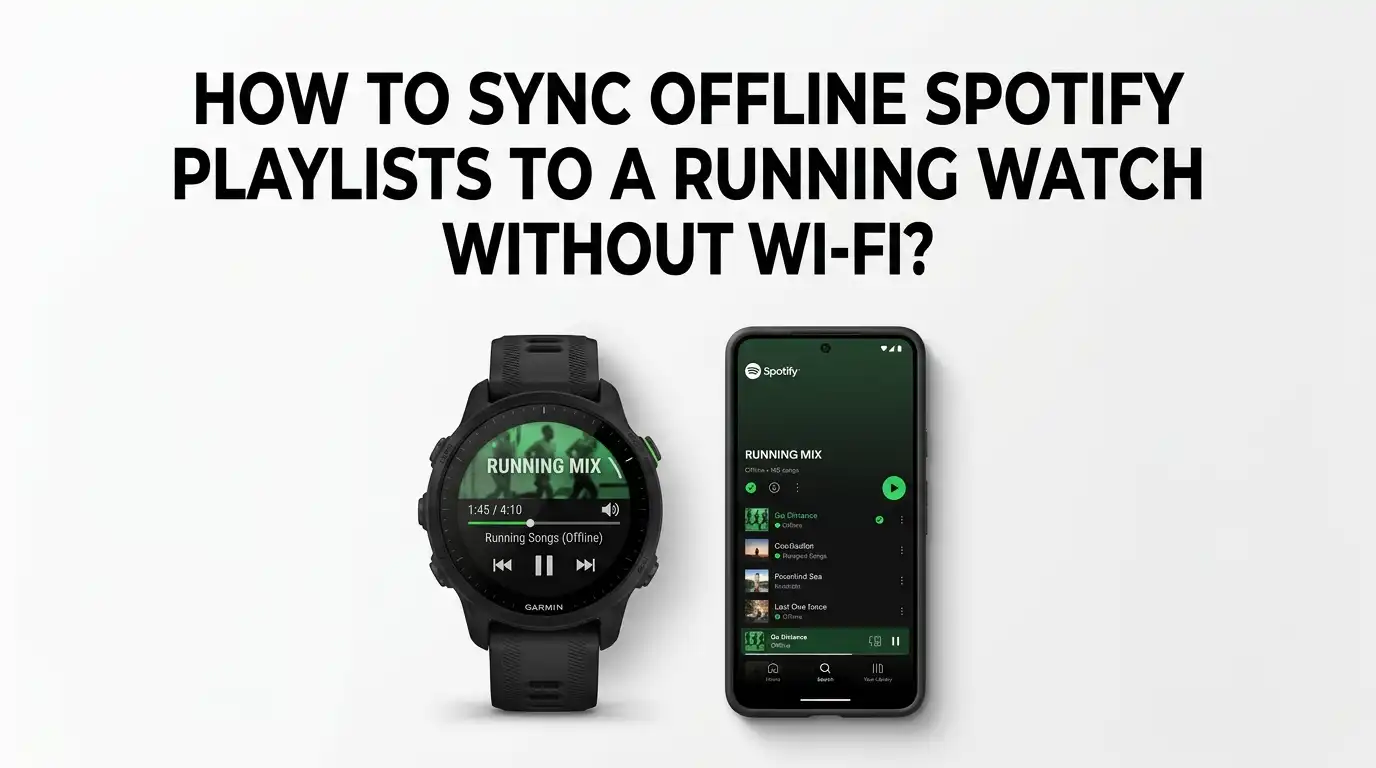
How to Sync Offline Spotify Playlists to a Running Watch Without Wi-Fi?
Running without your phone feels freeing. No bouncing pocket weight, no sweaty screens, just you and the road. But silence gets boring fast, and that is where your running watch saves the day.
The catch? Most people think you need Wi-Fi to load Spotify playlists onto a watch. The truth is more flexible than that.
This guide shows you how to sync Spotify songs to your running watch even when Wi-Fi is missing or unreliable. You will learn workarounds, hardware tricks, and step by step methods that work for Garmin, Apple Watch, Samsung, and other popular models.
Key Takeaways
- Spotify Premium is required for offline downloads on every supported watch, including Garmin, Apple Watch, Samsung Galaxy Watch, and Google Pixel Watch. The free version will not let you store songs locally.
- Wi-Fi is the standard sync method, but you can replace it with mobile hotspot tethering, Bluetooth syncing on select models, or a wired computer connection through Garmin Express for certain watches.
- Your phone hotspot acts like a Wi-Fi network to the watch, meaning you can sync playlists anywhere you have cellular data, even from a hotel room or trail parking lot.
- Apple Watch and Samsung Galaxy Watch sync over Bluetooth from a paired iPhone or Android phone, which means no Wi-Fi network is needed at all for many users.
- Watches with LTE or cellular can pull playlists straight from Spotify servers using mobile data, skipping Wi-Fi entirely.
- Storage limits matter, so plan playlists between 500 MB and 4 GB depending on your watch model and keep them small for faster syncs.
Why Wi-Fi Is Usually Required for Spotify Syncing
Most running watches sync Spotify playlists over Wi-Fi because the audio files are large. A single song can weigh 3 MB to 10 MB, and a 30 song playlist can climb past 200 MB. Bluetooth transfers that much data too slowly for daily use.
Watch makers built Wi-Fi as the default channel for this reason. Garmin Forerunner, Fenix, and Venu watches all sync Spotify only through Wi-Fi or a USB cable. The watch downloads tracks directly from Spotify servers, not from your phone.
This is why people get stuck when their home Wi-Fi is down or they are traveling. But you have several escape routes, and the next sections cover each one.
Method 1: Use Your Phone Hotspot as a Wi-Fi Replacement
The most reliable workaround is your phone hotspot. Your watch cannot tell the difference between a router and a phone broadcasting a hotspot signal. Both look like Wi-Fi networks.
To set this up, open your phone settings and turn on Personal Hotspot (iPhone) or Mobile Hotspot (Android). Give it a clear name and password. Then on your watch, go to the Wi-Fi settings and add the hotspot as a new network. Pick it from the list, type the password, and connect.
Once connected, open Spotify on your watch and start the playlist download. The watch will pull songs over your cellular data through the hotspot.
Pros: Works anywhere with cell signal, no router needed, fast download speeds on 5G.
Cons: Uses your mobile data plan, drains phone battery quickly, large playlists may push you over data caps.
Method 2: Sync Apple Watch Spotify Playlists Over Bluetooth
Apple Watch users have it easier than most. Spotify on Apple Watch can download playlists directly through Bluetooth from your paired iPhone. No Wi-Fi network is needed at all if your iPhone has internet through cellular data.
Open the Spotify app on your Apple Watch, sign in with Premium, and browse to your saved playlists. Tap the download icon (a small arrow) on the playlist you want offline. Keep the watch close to your iPhone and on the charger for best results.
Downloads can take 30 minutes to 2 hours depending on size. The Apple Watch can hold around 10 hours of music for offline play.
Pros: No Wi-Fi network required, works while iPhone uses cellular, simple one tap process.
Cons: Slower than Wi-Fi, drains both devices, requires Apple Watch Series 3 or newer with watchOS 6 or higher.
Method 3: Sync Garmin Watches Using a Mobile Hotspot
Garmin watches like the Forerunner 265, 965, Fenix 7, and Venu 3 all support Spotify, but they need Wi-Fi for the actual song transfer. Your phone hotspot solves this neatly.
Turn on the hotspot on your phone first. On the Garmin, press the menu button, scroll to Settings, then Wi-Fi, then Add Network. Pick your hotspot name and enter the password.
Now open the Spotify app on the watch (installed through Garmin Connect IQ), pick your playlist, and hit download. Plug the watch into a charger during the sync because the Wi-Fi radio drains battery fast.
Pros: Works for all music capable Garmin models, no home router needed.
Cons: Sync can be slow, sometimes stalls at random percentages, and uses cellular data heavily.
Method 4: Sync Samsung Galaxy Watch Without Wi-Fi
Samsung Galaxy Watches running Wear OS can download Spotify playlists in two ways. The first uses Bluetooth from your paired Android phone. The second uses LTE if your watch model has cellular built in.
For Bluetooth syncing, open the Spotify app on the watch, sign in, and pick Your Library. Tap the playlist you want and select the download icon. Keep the watch and phone within 10 feet of each other during the transfer.
If you have an LTE Galaxy Watch, you can skip the phone entirely and download playlists straight from Spotify servers using cellular data.
Pros: Two flexible sync paths, no Wi-Fi router needed, works during travel.
Cons: Bluetooth transfer is slow for big playlists, LTE adds monthly cost.
Method 5: Use a USB Cable with Garmin Express on Computer
Here is a hidden trick. Some Garmin watches let you sync music using a USB cable and the Garmin Express desktop app. This bypasses Wi-Fi completely for the data transfer part, though you still need internet on your computer.
Plug the watch into your laptop or desktop with the charging cable. Open Garmin Express and let it detect the watch. Click the music tab, sign in to Spotify, and pick the playlists you want.
The computer downloads the songs from Spotify and pushes them to the watch through USB. This is often faster than Wi-Fi syncing and more reliable.
Pros: Very stable, fast transfer, works without home Wi-Fi network on the watch.
Cons: Requires a computer with internet, only works for select Garmin models, less convenient for quick changes.
Method 6: Sync Using a Public Wi-Fi Network Safely
Sometimes the fastest solution is a coffee shop or library Wi-Fi. Most running watches can connect to open or password protected public networks.
On Garmin, go to Settings, Wi-Fi, and Add Network. The watch scans nearby signals. Pick one and enter the password if needed. For captive portal networks (those that need a browser sign in page), you may need to sign in first using your phone on the same network.
Public Wi-Fi is generally safe for Spotify syncing because the music app uses encrypted connections. Still, avoid syncing on networks that look suspicious.
Pros: Free, often faster than home Wi-Fi, good for travelers.
Cons: Captive portals can block sync, signal can drop, not every public network works smoothly.
Method 7: Plan and Pre Download Playlists Before You Travel
Smart runners prepare playlists ahead of time. If you know you will be in a Wi-Fi free area for days, download everything before leaving.
Create a dedicated playlist in Spotify called something like Run Tracks Offline. Keep it under 50 songs to speed up syncing. Then connect your watch to home Wi-Fi the night before and let it sync overnight while charging.
Top off the playlist with backup songs so you do not get bored if your trip extends. Once downloaded, the songs stay on the watch even when Wi-Fi disappears.
Pros: Zero sync stress during travel, songs ready when you need them.
Cons: Needs forward planning, limited by watch storage, Spotify requires you to go online every 30 days to keep downloads valid.
How to Handle Storage Limits on Your Watch
Running watches have small storage compared to phones. Garmin Forerunner 265 holds around 8 GB, Apple Watch Series 9 has 64 GB but only some is for music, and most Galaxy Watches offer 8 GB to 16 GB.
A 50 song playlist usually takes 250 MB to 400 MB. To save space, delete old playlists you no longer use. On Garmin, open the music app, find the playlist, and press the menu button to remove it.
Lower the download quality in Spotify settings if storage is tight. The Normal setting uses about half the space of High quality with only a small drop in sound clarity.
Pros: More room for variety, faster syncs with smaller files.
Cons: Slightly lower audio fidelity, manual cleanup needed often.
Troubleshooting Common Sync Problems
Sync failures are the most frustrating part of this whole process. Here are the fixes that work most often. Restart both the watch and phone before retrying. Then forget the Wi-Fi network on the watch and add it again with the password.
If Spotify shows 0 tracks in your playlist, the playlist might be collaborative or recently changed. Make it a regular playlist, not collaborative, and try again. Garmin watches sometimes refuse playlists with over 700 songs, so split them up.
Always charge the watch to 100 percent before a big sync. The Wi-Fi radio uses heavy power, and a sync can fail if the battery drops below 30 percent.
When to Consider a Watch with Built In LTE
If you sync music constantly and hate Wi-Fi hassles, an LTE watch is the cleanest answer. Models like the Apple Watch Series 9 Cellular, Galaxy Watch 6 LTE, and Garmin Forerunner 945 LTE can pull playlists straight from Spotify servers using their own SIM connection.
These watches add about 10 dollars a month to your phone plan for cellular service. In return, you can download playlists on a trailhead, mid run, or at a campsite with zero Wi-Fi nearby.
LTE also lets you stream music live if you have signal, so you never run out of fresh tracks.
Pros: True independence from Wi-Fi and phone, sync anywhere with cell signal.
Cons: Extra monthly cost, faster battery drain, higher upfront watch price.
Frequently Asked Questions
Can I sync Spotify to my running watch without Premium?
No. Spotify only allows offline downloads with a Premium subscription. The free tier does not support saving songs to any device, including watches. You need Premium Individual, Duo, Family, or Student to enable the download feature on your watch.
Does Bluetooth alone work for syncing Spotify on Garmin?
No. Garmin watches require Wi-Fi or a USB cable connection to sync Spotify playlists. Bluetooth handles phone notifications and live streaming control but cannot transfer the actual music files. A phone hotspot is the common workaround.
How long does it take to sync a Spotify playlist to a running watch?
A 30 song playlist usually takes 10 to 30 minutes over Wi-Fi or hotspot. Bluetooth syncing on Apple Watch can take 1 to 2 hours. Larger playlists with 100 songs may need over an hour even on fast Wi-Fi connections.
Will my downloaded Spotify songs stay on the watch forever?
No. Spotify requires your watch to connect to the internet at least once every 30 days to verify your Premium account. If you skip this check, the downloaded songs become locked until you reconnect online.
Can I use a friend’s Wi-Fi to sync my watch?
Yes. Any Wi-Fi network with a password works. Add it through your watch settings the same way you would add your home network. Just remember to delete it later if you do not want your watch auto connecting on future visits.
What happens if my hotspot disconnects mid sync?
The sync will pause and usually resume when the connection comes back. If it fails completely, restart the Spotify app on the watch and try again. Most watches remember which songs already downloaded and skip them on retry.

Hi, I’m Lucy Jones, a dedicated watch enthusiast and reviewer. I spend my time hunting down, testing, and evaluating the most intriguing wristwatches on the market. My goal is to guide you through the overwhelming choices with honest, hands-on insights into every timepiece.